
Can a document scanner app with cloud storage make your PDFs easier to access without making private paperwork harder to protect? Cloud sync can keep files available through a connected service, but it is not automatically the same as a backup. Knowing the difference matters before you upload IDs, forms, or receipts. The aim is to keep scans organized and ready when needed while staying aware of where they’re stored.
This guide explains how local storage, synchronization, and backup differ, what to consider before using sync, and how to build a practical Android workflow for scanning, organizing, and retrieving PDFs. It also explains how Scantrix combines document capture, PDF creation, OCR, and organization, with cloud synchronization included as a premium feature. The goal is to balance convenient access with privacy and keep every scan manageable.
Key Takeaways
- A document scanner app with cloud storage can make PDFs available beyond the phone, but synchronization and backup serve different purposes.
- Before syncing, consider storage location, device access, organization tools, OCR search, PDF output, and recovery options.
- Use a consistent sequence: capture the page, review the scan, create the PDF, then organize the file so it is easy to retrieve.
- Scantrix combines Android PDF capture with OCR and electronic signatures, while cloud synchronization is a premium feature.
What a document scanner app with cloud storage actually does
A scanner app uses your phone’s camera to capture paper pages and turn them into digital files, often PDFs. This is part of document imaging, the process of converting paper information into digital images that can be viewed and managed on a device. A document scanner app with cloud storage adds a way to store or synchronize those files beyond the phone itself.
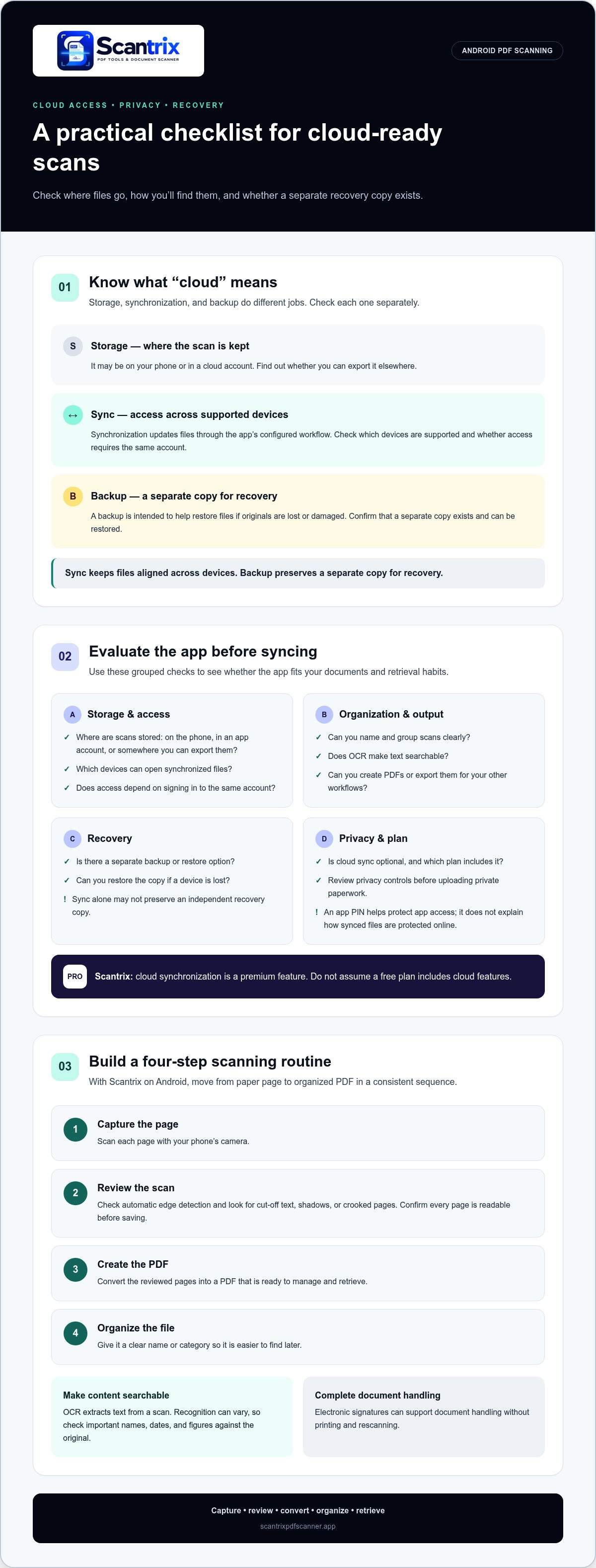
These functions are related, but they aren’t interchangeable. Storage is where a scan is kept, such as on your phone or in a cloud account. Synchronization updates files across supported devices through an app’s configured workflow. Backup creates another copy intended to help restore files if the originals are lost or damaged. Cloud access depends on the app’s features and your setup. A cloud feature does not automatically mean that every device can access scans or that a separate recovery copy exists.
Cloud sync versus backup: what happens to a scanned PDF?
Sync is designed for access. If an app synchronizes a PDF, it may make that file available on other supported devices. Depending on the app, changes may also carry across devices. Backup is designed for recovery. A separate copy can help if a device is lost, but it is useful only if the backup exists and can be restored.
Sync keeps files aligned across devices; backup preserves a separate copy for recovery. Treat the distinction as a practical check, not just a label. Understand where scans are stored and what the app’s sync feature covers before relying on cloud access. Scantrix PDF Scanner offers cloud synchronization as a premium feature, alongside Android scanning, PDF creation, and file organization. Keep access and recovery in mind when deciding how to manage important scans.
How to evaluate a document scanner app with cloud storage
Start with the storage path. Determine whether scans stay on the phone, sync through an app account, or can be exported elsewhere. Then consider which devices can access synchronized files and whether access depends on signing in to the same account. A document scanner app with cloud storage should suit the way you retrieve files, not just the way you capture them.
Next, assess the everyday workflow. Can you name and group scans clearly? Does OCR make text searchable? Can you create PDFs that are easy to use in your other workflows? Is there a way to recover files if a device is lost? These are core document-management considerations, as IBM explains in its overview of document management.
- Storage and access: Identify where scans are kept and which devices can open them.
- Organization and output: Consider folders or other sorting tools, OCR search, and PDF creation or export.
- Recovery: Look for a separate backup or restore option. Sync alone may not preserve an independent copy.
A practical checklist for access, privacy, and subscriptions
Before enabling cloud sync, find out whether it is optional and which plan includes it. Do not assume a free plan includes cloud features. In Scantrix, cloud synchronization is a premium feature. Review privacy controls, too. A PIN can help protect access to an app, but it does not explain how synchronized files are protected online. For a closer look at local file access, see Scantrix’s Android PDF scanning workflow.
Consider each function separately: storage tells you where files go, sync explains how they become available elsewhere, and privacy controls govern access. Compare those features with the documents you handle and the devices you use.
Create a cloud-ready scanning workflow with Scantrix
A reliable workflow turns a paper page into a useful, easy-to-find file. With Scantrix on Android, follow four steps: capture the page, review the automatic edge detection, create the PDF, then organize the file with a clear name or category. Check each captured page before saving. A clean, readable scan is easier to search, share, and manage later.
From paper capture to organized PDF access
Edge detection helps frame the document in the image before PDF conversion. Review the result for cut-off text, shadows, or crooked pages. OCR extracts text from a scan, which can make document contents searchable. Recognition can vary, so check important names, dates, and figures against the original.
OCR and electronic signatures extend the workflow beyond capture. Extracted text can help you locate information, while an electronic signature can support document handling without printing and rescanning. For ideas on building a broader mobile scanning routine, see ZDNet’s overview of best mobile scanning apps.
- Capture and review: Scan each page, then check its edges and readability.
- Create and organize: Save the pages as a PDF and give the file a useful name or category.
- Search and complete: Use OCR to extract text, and add an electronic signature when needed.
- Plan access: Scantrix includes cloud synchronization as a premium feature. Include it in your workflow when you need cloud access to your scans.
A document scanner app with cloud storage works best when capture, organization, and access are planned together. Treat PIN protection as an app privacy control, not as a description of how synchronized files are protected in the cloud. For more organization ideas, explore digital filing cabinet apps for Android.
Build a document workflow that works for you
A document scanner app with cloud storage is most useful when you understand where scans are kept, how sync makes them accessible, and whether you have a separate backup for recovery. Consider privacy controls and plan features before relying on cloud access. Then follow a consistent routine: capture, review, convert, organize, and retrieve.
Scantrix brings Android document capture, PDF creation, OCR, and electronic signatures into one workflow. Its premium features include cloud synchronization, bringing cloud access into the same app as your scanning and organization tools. A clear process makes important documents easier to manage while keeping privacy decisions in view.
Explore Scantrix and get help with your scanning workflow. Set up a practical routine, keep your files organized, and make each scan easier to find when you need it.
Frequently Asked Questions
What does cloud storage do in a document scanner app?
Cloud storage keeps scanned files online, so an app may let you access them beyond the phone where they were captured. A document scanner app with cloud storage might also synchronize PDFs across supported devices, depending on its features and setup. Sync is not automatically a separate backup. Consider where files are stored, how access works, and whether recovery copies are available.
Can I scan documents to PDF and store them in the cloud?
Yes, if your scanner app supports PDF creation and a cloud storage workflow. Capture the page, review the scan, create the PDF, then use the app’s cloud feature or export options. Features vary: some apps synchronize files, while others let you export them elsewhere. Scantrix creates PDFs on Android and includes cloud synchronization as a premium feature.
Is it safe to store scanned documents in cloud storage?
Cloud storage can be useful, but the right privacy choice depends on the app’s protections, access controls, and your account settings. Use a strong password, secure your phone, and limit sharing of sensitive files. An app PIN can help control access to the app, but it does not explain how synced cloud files are protected. Be selective about what you upload.
Does cloud synchronization in a scanner app require a subscription?
It depends on the app. Some include cloud features in a free plan, while others reserve synchronization for paid plans. In Scantrix, cloud synchronization is a premium feature, while Android document capture and PDF creation are part of its scanning workflow. Review the plan details before relying on cloud access, and do not assume that a free scanner app includes sync.


