
One missed or out-of-order page can turn a clean scan into a frustrating redo. To scan multiple pages into one PDF on Android, capturing each page is only half the job. You also need to confirm that every page is clear, correctly cropped, and saved together in a single file.
This guide walks you through a page-by-page workflow, from starting a scan to checking the finished document before export. You’ll learn what to look for in page clarity, cropping, and order, and why menu names can differ between Android phones and scanner apps. Follow the steps to capture several pages in one session and create a PDF that’s ready to share or organize.
Key Takeaways
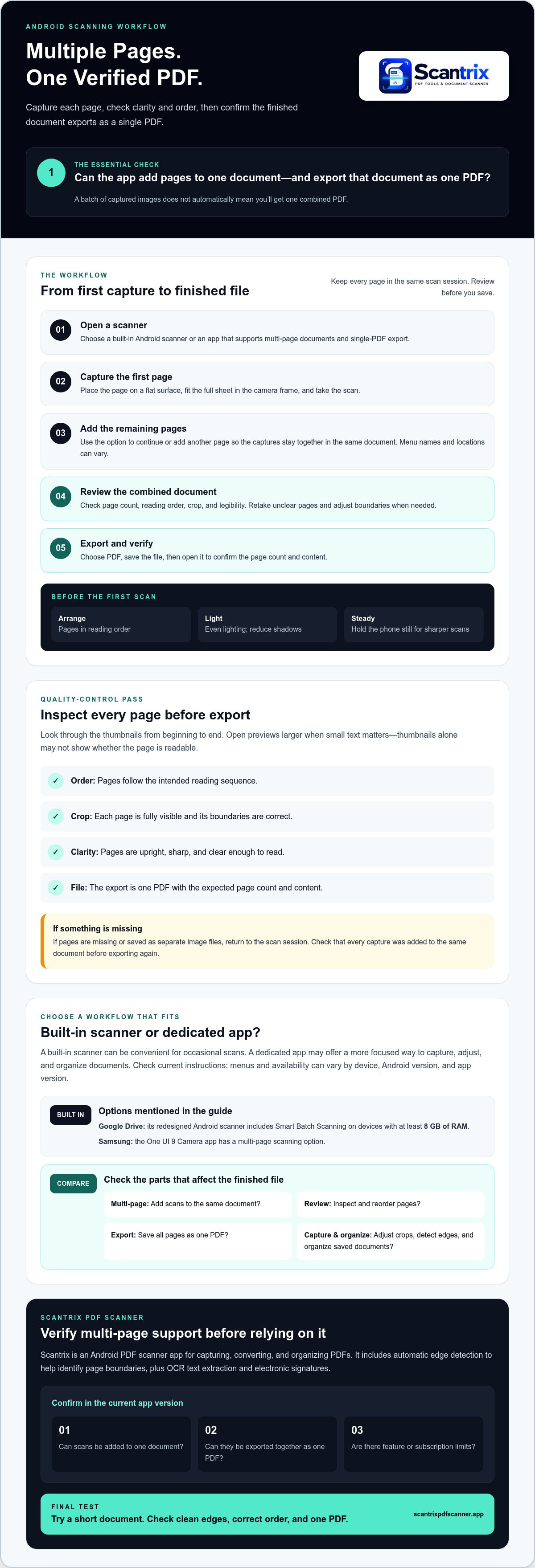
- Choose a built-in Android scanner or a dedicated app based on the features you need, and confirm it can save multiple scans as one PDF.
- Use a clear capture-to-export workflow to scan multiple pages into one pdf android, then inspect the document before saving.
- Compare scanner apps for page review, PDF export, edge detection, and file organization before settling on one.
- Check Scantrix PDF Scanner’s current multi-page support, in-app steps, and any feature limits before using it for a combined PDF.
Scan Multiple Pages into One PDF on Android: Choose a Workflow
The goal is straightforward: capture several document pages, check them, and save them as one shareable PDF. To scan multiple pages into one pdf android, choose a workflow that lets you add pages to the same document and review them before export.
A built-in scanner can be convenient for occasional scans. Google Drive’s redesigned Android scanner includes Smart Batch Scanning on devices with at least 8 GB of RAM. Samsung’s One UI 9 Camera app also has a multi-page scanning option. A dedicated scanner app may provide a more focused way to capture, adjust, and organize documents. Before you start, check the app’s current instructions. Menus and export options can vary by device, Android version, app version, and feature availability.
A phone camera works as an image-capture tool in a scanning workflow. For background on how scanners convert physical material into digital images, see this overview of the image scanner.
What to check before scanning a multi-page document
Multi-page PDF scanning captures several document pages and combines them, in order, into one PDF file. Before you begin, confirm that your chosen app supports both adding pages to a single document and exporting that document as one PDF. A batch of images does not automatically mean you’ll get one combined file.
- Arrange the pages in reading order before opening the scanner.
- Use even lighting, reduce shadows, and hold the phone steady to help capture sharper images.
- Check the app’s preview or document list for page order, cropping, and export format.
These quick checks help you choose the right workflow before scanning the full document. If a menu label or option doesn’t match your screen, consult the app’s current guidance rather than relying on steps written for another version.
How to Scan Multiple Pages into One PDF on Android
The workflow is similar across most scanner apps, even when menus differ. To scan multiple pages into one pdf android, keep each page in the same scanning session, review the combined document, then confirm the export creates one PDF file.
- Open a scanner. Choose a built-in Android scanning option or a scanner app that supports multi-page documents.
- Capture the first page. Place the document on a flat surface, fit the full page in the camera frame, and take the scan.
- Add the remaining pages. Choose the app’s option to continue or add another page. Button names and locations vary by app version and device, so check the current app instructions if the next step isn’t clear.
- Review the document. Check the page count, reading order, crop, and legibility. Retake unclear pages and adjust the boundaries where needed.
- Export as a PDF. Select PDF if the app offers multiple file types, then save or share the completed document.
Review page order and export the finished PDF
Before saving, inspect the page thumbnails from beginning to end. If the app allows it, move any misplaced page into the correct reading order. Confirm that each page is upright, fully visible, and sharp enough to read. If small text matters, open each page preview at a larger size rather than relying on the thumbnail alone.
Export sequence: Review the pages, choose PDF as the format, save the file, then open it to verify the page count and content.
If the exported PDF is missing pages or the scans are saved as separate image files, return to the scan session and check that every capture was added to the same document before exporting. For details about Scantrix’s current workflow or feature limits, see the Scantrix contact page.
Choose a Scanner App for Repeat Multi-Page PDFs
For repeat scans, compare apps by the steps that affect the finished file, not by the number of features listed. Confirm that the app can add multiple pages to one document and export them as a single PDF. Then check whether it lets you review and reorder pages, adjust crops, detect page edges, and organize saved documents. These checks help you avoid an app that captures pages but doesn’t support the workflow you need.
- Multi-page support: Can you add scans to the same document?
- Review and export: Can you inspect page order and save one PDF?
- Capture and organization: Does edge detection help define page boundaries, and can you keep finished documents organized?
When Scantrix may fit your Android scanning workflow
Scantrix is an Android PDF scanner app for capturing, converting, and organizing PDFs. It also includes automatic edge detection to help identify page boundaries, along with OCR text extraction and electronic signatures. Before relying on it to scan multiple pages into one PDF, verify that the current Android version supports adding scans to one document and exporting them together. Check the in-app steps and any feature or subscription limits as well.
Once you’ve confirmed the workflow, test it with a short document. Review the output for clean edges, correct order, and a single PDF before using the app for important records. If multi-page support or export details aren’t clear, check with the Scantrix team through its official contact page before choosing it for this task.
Build a Reliable Scanning Workflow
A successful multi-page scan is more than a series of captures. Choose an Android workflow that supports one-PDF export, then check the page count, order, crop, and readability before sharing. These steps help you scan multiple pages into one pdf android without overlooking a missing or unclear page.
Scantrix is an Android PDF scanner app with PDF capture and organization features, plus automatic edge detection to help identify page boundaries. Before using it for a combined multi-page PDF, confirm that the current app version supports adding scans to one document and check any relevant feature limits.
Have a question about Scantrix or its current Android scanning options? Contact the Scantrix team with your Android scanning questions. With the right workflow and a careful final review, your pages can become one clear, organized PDF.
Frequently Asked Questions
How do I scan multiple pages into one PDF on Android?
Use a scanner app that lets you add pages to one document and export them as a single PDF. Capture the first page, add each following page in order, then review the page count, order, crop, and readability. Choose PDF export and open the saved file to confirm every intended page is included.
Can Google Drive scan multiple pages into one PDF on Android?
Yes. Google Drive’s redesigned Android scanner includes Smart Batch Scanning for capturing multiple pages. Availability depends on the feature rollout, and it is available on Android devices with at least 8 GB of RAM. Check the current Drive app on your device for access, then review the captured pages and confirm the export is one PDF.
How do I add another page while scanning a document on Android?
After capturing a page, choose the app’s option to continue the scan or add another page, then capture the next sheet. The exact label and location vary by app and version, so check the current interface or app guidance. Keep the document in reading order and review the pages before exporting.
Why are my scanned pages saving as separate PDF files?
Your scanner may be ending the document after each capture, or you may be starting a new scan instead of adding pages to the current one. Check that the app supports combining pages into one document, use its add-page workflow, and select a single-PDF export. Reopen the saved file to verify the page count.


