
What matters when you scan an ID card is not just taking a picture, but making sure every detail is readable and both sides are in the right order.
If you need to scan id card to pdf android, a quick phone photo can leave text blurry, crop an edge, or save the front and back as separate files. This guide walks you through capturing a clear image, organizing both sides when needed, and checking the PDF before sharing it.
You’ll learn how to position the card, review the finished pages, and handle sensitive identity details thoughtfully. We’ll also cover Scantrix PDF Scanner, an Android app with automatic edge detection to help identify document borders. Treat that as a capture aid, not a guarantee of a perfect scan. The final check is yours.
Key Takeaways
- Check the recipient’s requirements first. A PDF may not replace an original ID or meet every submission rule.
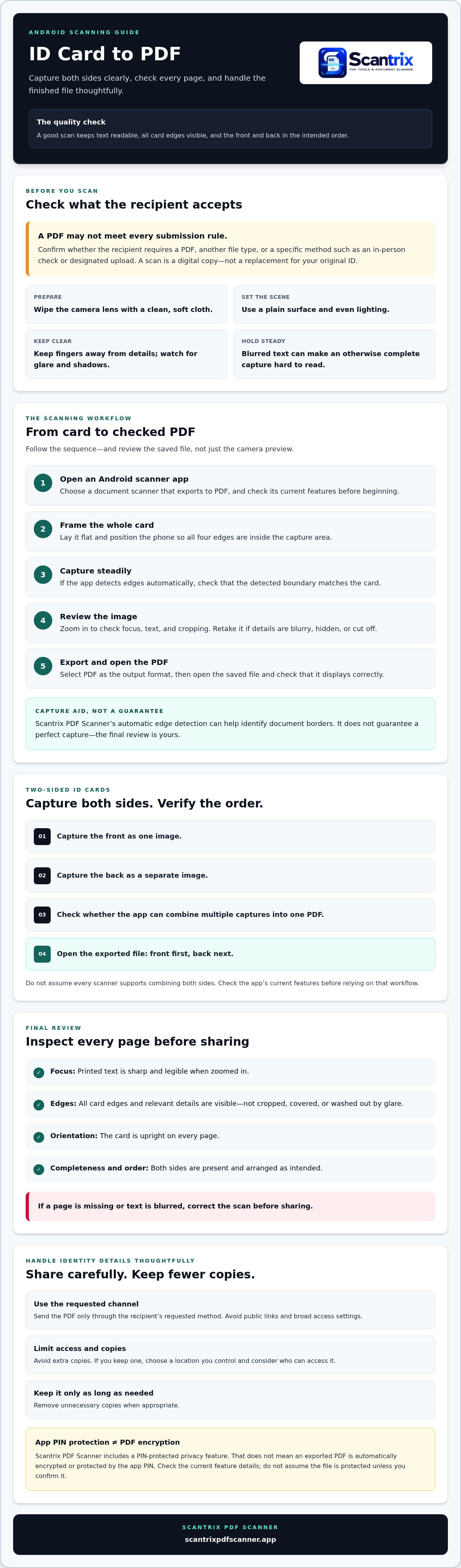
- To scan id card to pdf android, frame the card carefully, capture it, review the image, then export it as a PDF.
- For a two-sided card, capture each side and check the page order. Confirm your scanner app can put both sides in one file before relying on that option.
- Check focus, cropping, and orientation before sharing. Use the recipient’s requested channel and limit extra copies or access.
What to check before scanning an ID card to PDF on Android
Start by confirming what the recipient accepts. A scan is a digital copy, not a replacement for your original ID, and a PDF may not meet every organization’s requirements. Check whether the recipient wants a PDF, a different file type, or a specific submission method, such as an in-person check or a designated upload process.
A scanner app captures the card image and can convert it into a PDF. This overview of how image scanners convert documents explains the basic process. The result on Android depends on both the capture and your review of the exported file.
- Wipe the camera lens with a clean, soft cloth.
- Place the card flat on a plain surface with even lighting.
- Keep all four edges inside the frame, and make sure your fingers don’t cover any details.
- Hold the phone steady. Watch for glare, shadows, and blur, especially over printed text.
What makes an ID-card scan readable?
Inspect the saved PDF, not just the camera preview. The text should be in focus, the card edges should be visible, and no relevant details should be cropped, obscured, or washed out by glare. Zoom in to check small print. If a detail is hard to read, change the lighting or phone position and capture the card again before exporting. Scantrix PDF Scanner’s automatic edge detection can help identify the card’s borders, but it doesn’t guarantee a perfect capture. Reviewing the result helps you catch issues before using or sharing the file.
How to scan an ID card to PDF on Android, step by step
Follow these steps to scan id card to pdf android without relying on automatic cropping alone. Scantrix PDF Scanner is one Android option for capturing documents and converting them to PDFs. Its automatic edge detection can help identify the card’s borders, but review the result yourself.
- Open a scanner app. Choose an Android document scanner that exports to PDF. Check its current features before you begin.
- Frame the card. Lay it flat and position the phone so the whole card, including all four edges, is in the capture area.
- Capture the image. Hold the phone steady. If the app detects edges automatically, check that the detected boundary matches the card.
- Review the capture. Zoom in to check focus, text, and cropping. Retake the image if details are blurry, hidden, or cut off.
- Export as PDF. Select PDF as the output format, then open the saved file to check that it displays correctly.
How do you put both sides of an ID card in one PDF?
Capture the front and back as separate images, then check whether your app can combine multiple captures into one PDF. If it can, open the exported file and confirm the front appears first and the back follows. Don’t assume every scanner supports this workflow. Check Scantrix’s current app features before relying on it to combine both sides in one file, and don’t assume it has a dedicated ID-card mode or a specific button sequence.
Review the exported file before sending it. Digital ID files contain sensitive details, and this report on the dangers of data breaches illustrates why careful handling matters. For an Android scanning option, see Scantrix PDF Scanner.
How to review and handle your ID-card PDF after scanning
Before sending the file, open the saved PDF and inspect every page. Check that the card is upright, both sides are present in the intended order, and no edge or printed detail is cropped. Zoom in to check focus and legibility. If text is blurred or a page is missing, correct the scan before sharing it.
Send the PDF only through the channel the recipient requested. Avoid public links, broad access settings, and copies you don’t need. If you keep a copy, choose a location you control and consider who can access it.
Can you protect an ID-card PDF on Android?
PIN-protected app privacy and PDF encryption are different. Scantrix PDF Scanner includes a PIN-protected privacy feature, but that doesn’t mean an exported PDF is automatically encrypted or protected by the app PIN. Check the app’s current feature details, and don’t assume the file is protected unless you confirm it. For file-level protection guidance, see App to Lock PDF Files on Android: The 2026 Security Guide.
Keep the file only as long as you need it, and remove unnecessary copies when appropriate. For questions about Scantrix’s app capabilities, visit Scantrix PDF Scanner.
Make Your ID-Card PDF Ready to Share
A clear ID-card PDF starts with a steady capture, even lighting, and every card detail in frame. Before scanning, check the recipient’s requirements. If you capture both sides, confirm the page order and whether your app can combine them into one file.
After exporting, inspect the PDF for blur, cropping, and incorrect orientation. Share it only through the requested channel, and avoid keeping extra copies. Scantrix PDF Scanner is a free Android app for document capture and PDF conversion. Its automatic edge detection can help with framing, while its PIN-protected privacy feature is separate from PDF encryption. Review the app’s current details to understand each feature’s scope.
To scan id card to pdf android, first check the recipient’s instructions, then capture and review the file before sharing. For questions about Scantrix PDF Scanner, contact Scantrix with your questions.
Frequently Asked Questions
How do I scan both sides of my ID card into one PDF on Android?
Capture the front and back separately, then use a scanner app that supports combining multiple captures into one PDF. Check the exported file to confirm both pages are present and in the right order. If you’re looking for a way to scan id card to pdf android, verify your chosen app’s current features first. Don’t assume it has a dedicated ID-card mode or combines both sides automatically.
Can I scan an ID card with my Android camera?
Yes. Capture each side with your camera, then open the images in an Android scanner app that can convert documents to PDF. Position the card fully inside the frame and hold the phone steady. Review the images before exporting. Scantrix PDF Scanner is an Android option for capturing documents and converting them to PDFs. Check its current workflow if you need to combine multiple captures.
How do I make an ID-card scan clearer?
Clean the camera lens, place the card flat, and use even lighting to reduce glare and shadows. Keep fingers away from printed details and hold the phone steady. After capturing, zoom in on the saved image or PDF. Check that the text is in focus and the card edges are visible. If details look blurry or cropped, adjust the setup and capture the card again.
Is it safe to scan an ID card on Android?
It can be reasonable if you use a trusted scanner app and handle the file carefully, but no app feature makes every copy risk-free. Share the PDF only through the recipient’s requested channel, restrict access, and remove unnecessary copies. Scantrix includes PIN-protected privacy, but an app PIN doesn’t necessarily encrypt an exported PDF. Check the app’s current feature details and file-protection options.


