
One missed flip can scramble an otherwise clear scan. If you’re learning how to scan double sided documents on android, capture the front and back of every sheet in sequence, then combine the images into one readable PDF.
It’s easy to lose track of which side comes next, especially when an app’s page controls aren’t obvious. With a phone, the process is usually manual: scan one side, flip the sheet, and scan the other. This guide covers how to prepare your pages, capture both sides, check their order, and save a clean PDF. You’ll also find ways to prevent common problems, such as skipped backs, mixed-up pages, and blurry captures. A consistent routine keeps the finished document organized and ready to share.
Key Takeaways
- Understand how an Android scanning app combines separate captures into a document arranged for reading.
- Use a consistent capture routine to learn how to scan double sided documents on android without losing track of each sheet.
- Check page edges, orientation, and order before saving, and retake any unclear captures.
- Improve readability by adjusting the lighting and phone position to reduce blur, shadows, glare, and crooked framing.
How double-sided document scanning works on Android
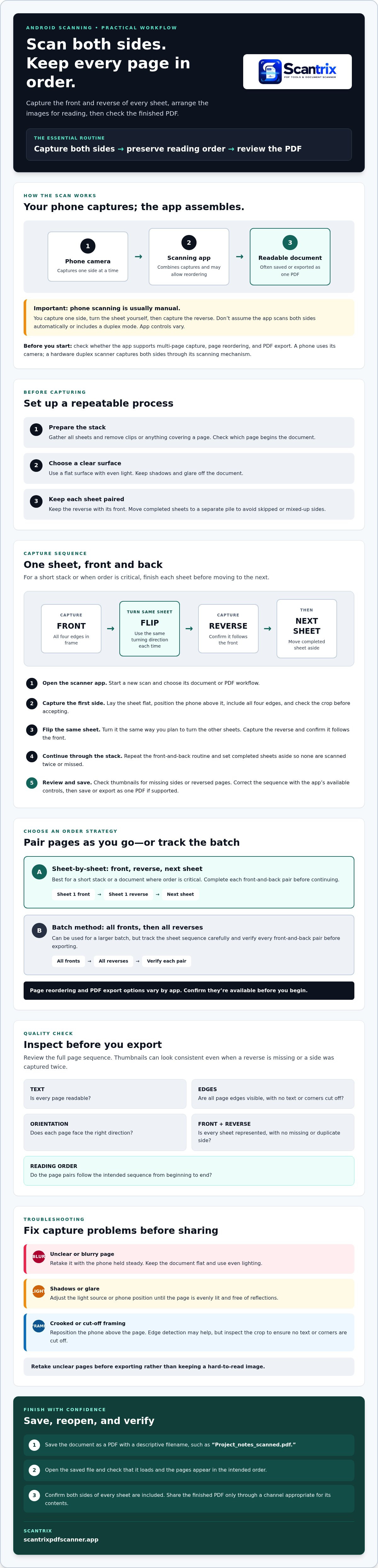
Double-sided scanning means capturing the front and back of every sheet, then arranging the captures in the order someone would read them. Your Android phone takes the images, and a scanning app or another workflow combines them into a document, often a PDF. For background on how image scanners work, note that a phone uses its camera rather than a dedicated scanner sensor.
In a phone-based workflow, you’ll usually capture one side, flip the sheet yourself, and capture the reverse. App controls vary, so check whether your chosen app supports multi-page capture, page reordering, and PDF export before you start. Don’t assume it scans both sides automatically or includes a duplex mode.
What to prepare before scanning both sides
Manual duplex capture uses your phone camera and requires you to turn each sheet. A hardware duplex scanner can capture both sides through its scanning mechanism. Before you begin, set up a repeatable process:
- Gather the full stack and remove clips or anything covering the page.
- Choose a flat surface with even light. Keep the document clear of shadows and glare.
- Check which page starts the document. For a short stack, scan each sheet’s front and reverse before moving to the next. If you capture all fronts first and all backs later, keep the sheet sequence clear so you can pair the sides correctly.
- Keep each sheet’s reverse paired with its front. Move completed sheets to a separate pile to prevent skipped or mixed-up sides.
This setup makes how to scan double sided documents on android easier to manage because every capture has a place in the sequence. If you’re considering an app such as Scantrix PDF Scanner, check its current page capture, editing, and ordering controls before choosing your workflow.
How to scan both sides of each page on an Android phone
Use a scanning app that lets you add multiple pages to one document. Button names differ, so look for options such as “add page” or “continue” rather than relying on a specific label. To learn how to scan double sided documents on android, capture each side deliberately and keep the paper sequence visible.
- Open the scanner app. Start a new scan and choose its document or PDF workflow.
- Capture the first side. Place one sheet flat, position the phone so all four edges are in frame, and take the image. Check the crop before accepting it.
- Flip the same sheet. Turn it the same way you plan to turn the other sheets, capture the reverse, and confirm it follows the front.
- Continue through the stack. Repeat the front-and-back routine for each sheet. Move completed sheets to a separate pile so you don’t scan one twice or miss a reverse.
- Review and save. Check every page thumbnail for missing sides or reversed pages. Correct the sequence with the app’s available controls, then save or export the set as one PDF if supported.
Keep front-and-back pages in the correct order
For a short stack or a document where order is critical, scan one sheet at a time: front, reverse, then the next sheet. For a larger batch, you can capture all fronts first and all reverses second, but track the sheet sequence carefully and verify every pair before exporting. Page reordering and PDF export options vary by app, so confirm they’re available before you begin. For the broader Android PDF scanning guide, review the capture-to-PDF workflow before starting.
Check, improve, and save your double-sided Android scan
Before exporting, review the full page sequence. Confirm the text is readable, all page edges are visible, and each page faces the right direction. Check front-and-back pairs carefully: a missing reverse or a side captured twice can leave the PDF incomplete, even when the thumbnails look consistent.
Troubleshoot common scan problems before sharing
- Blur: Retake the page with your phone held steady. Keep the document flat and use even lighting.
- Shadows or glare: Adjust the light source or phone position until the page is evenly lit without reflections.
- Crooked framing: Reposition the phone above the page. Edge detection can help frame a document, but inspect the crop to make sure no text or corners are cut off. See the auto edge detection guide for more on this feature.
Retake unclear pages before exporting rather than keeping a hard-to-read image. Save the document as a PDF with a descriptive filename, such as “Project_notes_scanned.pdf.” Then open the saved file and check that it loads, the pages appear in the intended order, and both sides of every sheet are included.
Share the finished PDF only through a channel appropriate for its contents. For information about Scantrix’s Android scanning workflow, visit Scantrix.
Make your next scan clear and complete
A reliable double-sided scan comes down to a controlled routine: capture both sides of every sheet, keep them in reading order, then inspect the PDF before sharing. That’s the practical answer to how to scan double sided documents on android. Retake pages with blur, glare, or incomplete edges instead of carrying those flaws into the final file.
Scantrix PDF Scanner helps you capture and organize document pages on Android, with automatic edge detection to assist with framing. App controls can change, so check the current page capture, editing, and export options before starting your scan.
For help with Scantrix’s Android scanning workflow, contact Scantrix. Use a careful capture and review routine to create a readable PDF and share it with confidence.
Frequently Asked Questions
Can Android automatically scan both sides of a document?
Usually, no. An Android phone captures images with its camera, so you’ll generally need to turn each sheet and capture its reverse yourself. Some scanning apps may offer workflow shortcuts, but don’t assume they include automatic duplex scanning. Check the app’s current features before you begin, and use its multi-page option if available to assemble the separate captures.
How do I keep double-sided pages in the correct order?
Scan one sheet’s front, then its back, before moving to the next sheet. Place completed sheets in a separate pile so you can see which ones are done. For a larger stack, you can capture all fronts and then all backs, but keep the sheet sequence consistent. Review the page thumbnails afterward and move any misplaced pages if your app allows reordering.
Can I scan double-sided documents into one PDF on Android?
Yes, if your scanning app supports multi-page capture and PDF export. Capture each front and reverse as separate images, add them to the same scan, and check that they appear in reading order. If you’re learning how to scan double sided documents on android, confirm the app’s current page-adding and export controls before starting, since options vary between apps.
Why do the back pages appear upside down in my Android scan?
The reverse side may look upside down if you rotate the sheet differently while scanning or place that capture in the wrong orientation. Keep your flipping method consistent, then inspect each reverse in the page preview. If it’s inverted, use the app’s rotate control if available, or retake the page with the document correctly aligned before exporting the PDF.


