
A crisp scan can still be impossible to search. If it’s saved as an image, you may not be able to find or select a word, even when the page looks clear. To create searchable pdf android scans, you need OCR to recognize the text and add a searchable text layer.
This guide explains how OCR works, how to scan and save a searchable PDF on Android, and how to check the result for recognition errors. You’ll also compare app features, including OCR availability, export behavior, plan limits, and privacy options. Scantrix PDF Scanner is an Android workflow to evaluate, but check its current OCR availability and exported PDF before relying on it. By the end, you’ll know what to test and how to choose an app that fits your documents and privacy needs.
Key Takeaways
- To create searchable pdf android files, choose an OCR workflow that produces text you can search and select, not just a page image.
- Capture flat, well-lit pages, review the crop, then test the exported PDF by searching for a word from the document.
- Compare camera capture, scanner apps, and OCR for existing scans based on searchable output, editing, privacy, and organization.
- Before relying on an app, check its OCR availability, PDF export behavior, and plan limits against your document needs.
What Makes a PDF Searchable on Android? Understand OCR First
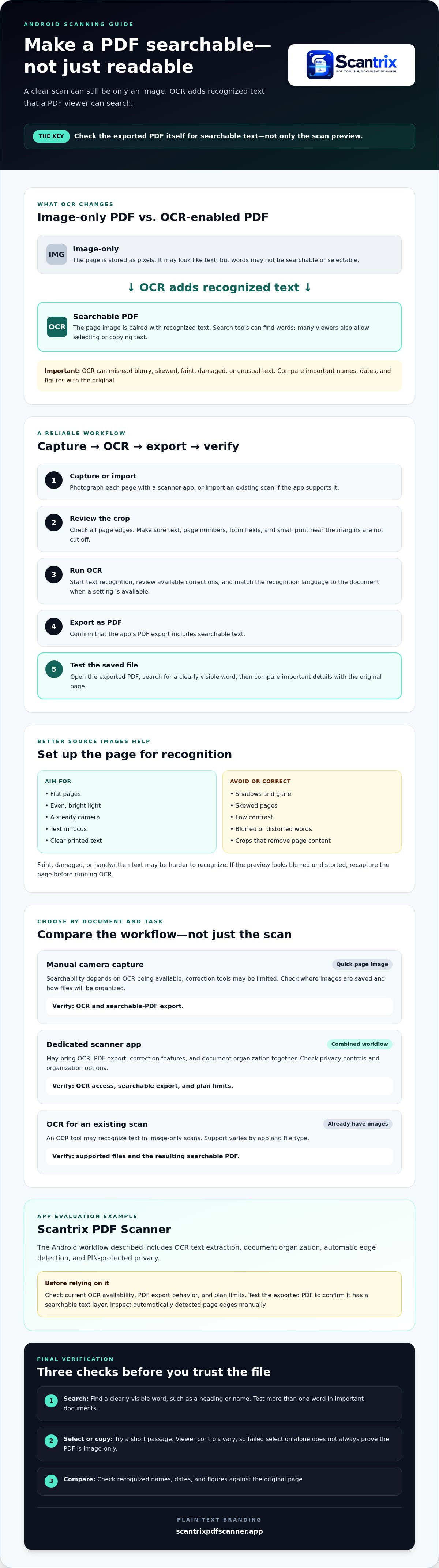
A PDF can look like a page of text and still contain only an image. A searchable PDF pairs the page image with recognized text, allowing you to find words and, in many viewers, select or copy them. Optical Character Recognition, or OCR, analyzes shapes in a scan, identifies likely letters and numbers, then creates text that a PDF viewer can search. For a broader technical overview, see Optical Character Recognition (OCR).
This distinction matters when you create searchable pdf android files: a clear scan is not necessarily a searchable one. OCR may misread blurry, skewed, faint, or unusual text. A page can look readable while the recognized text contains errors, so compare important names, dates, and figures with the original before relying on them.
How can you tell whether a scanned PDF has OCR text?
Open the exported PDF in a viewer and search for a clearly visible word, such as a heading or a name. If the viewer finds it on the page, that’s a good sign the file has a text layer. Then try selecting and copying a short passage. Viewer controls vary, so failed selection alone doesn’t always prove the PDF is image-only. Test more than one word, especially in important documents.
An image-only PDF shows text as pixels; an OCR-enabled PDF pairs the page image with recognized text that search tools can find.
If you’re searching for “create searchable pdf android,” check the exported file, not just the scan preview. Confirm that the PDF itself supports text search. This catches workflows that capture readable pages but don’t add searchable text.
How to Create a Searchable PDF on Android: Capture, Run OCR, Check
To create searchable pdf android files, use a workflow that adds recognized text, then verify the exported PDF. Button names vary between apps, but the essential steps are:
- Capture: Photograph each page with a scanner app, or import an existing scan if the app supports it.
- Review crops: Check that the whole page is included and no text, page numbers, or form fields are cut off.
- Run OCR: Start text recognition and review any available corrections. Check that the recognition language matches the document when the app offers a language setting.
- Export: Save as a PDF and confirm that the app’s export includes searchable text.
- Test: Open the saved file, search for a visible word, and compare important details with the original page.
OCR converts image shapes into text, so the quality of the source image affects what the software can recognize. For a deeper explanation of how OCR technology works, see IBM’s overview.
Which scan conditions help OCR recognize text?
Lay each page flat in even, bright light. Hold the camera steady and make sure the text is in focus. Avoid shadows, glare, skew, and low contrast. Clear printed text is generally easier to recognize than faint, damaged, or handwritten text. If words look blurred or distorted in the preview, recapture the page before running OCR.
Review the crop manually, even when an app detects page edges automatically. Check all four corners and make sure the crop has not removed small print near the margins. Smart edge detection, available in Scantrix PDF Scanner, can help frame page boundaries, but you should still inspect the result before saving.
Compare apps by OCR availability, searchable-PDF export, correction tools, privacy controls, organization, and plan limits. Scantrix PDF Scanner is an Android option with OCR text extraction, document organization, automatic edge detection, and PIN-protected privacy. Check current OCR availability and test the exported file to confirm it has a searchable text layer. Explore the Android PDF scanner app as one workflow to assess.
Which Android OCR Workflow Fits Your Documents, and What Should You Verify?
Choose a workflow based on what you’re scanning and how you’ll use the result. A camera app may be enough for a quick image of a page, but check whether it can run OCR and export searchable text. A scanner app can bring capture, OCR, and PDF organization together. If you already have image-only scans, an OCR tool may be able to recognize text in them. Support varies by app and file type. This Optical Character Recognition (OCR) overview offers background as you compare options.
| Workflow | Searchable output and editing | Privacy and organization | Check before use |
|---|---|---|---|
| Manual camera capture | Searchability depends on whether OCR is available; correction tools may be limited. | Review where images are saved and how you’ll organize files. | Confirm OCR and searchable-PDF export. |
| Dedicated scanner app | May combine OCR, PDF export, and correction features. | Check privacy controls and document organization options. | Verify OCR access and plan limits. |
| OCR for an existing scan | Can add recognized text to an image-based file; check editing support. | Review file handling and storage choices. | Test the output PDF’s search and selection. |
What should you check before choosing an Android PDF scanner?
Run a sample through the app, export the PDF, then search for a visible word and try selecting a passage. Include text from different parts of the page, such as a heading and a line near the bottom. Don’t assume a clear preview proves the saved file has searchable text. Check OCR access, plan limits, privacy controls, and organization features against your needs. For sensitive pages, review how the app handles files and what privacy protections it provides.
Scantrix PDF Scanner includes OCR text extraction, document organization, and PIN-protected privacy. Before using it for important files, check current OCR availability and test whether the exported PDF contains searchable text. To ask about Scantrix OCR, contact the team.
Make Your Next Scan Searchable
To create searchable pdf android documents, capture a clear page, run OCR, export the PDF, then test search and text selection. OCR adds recognized text, but it can miss details. Check names, dates, and figures against the original before relying on the file.
Choose a workflow that fits your documents and verify its OCR availability, export behavior, plan limits, and privacy controls. Scantrix PDF Scanner is an Android option with OCR text extraction, automatic edge detection, document organization, and PIN-protected privacy. Before using it for important files, test that the current version exports searchable PDFs and review the OCR features available to you.
For help assessing Scantrix OCR features, contact the team. A clear scan and a quick check of the exported file can help you build a dependable searchable-PDF workflow on Android.
Frequently Asked Questions
Can I create a searchable PDF on Android without a scanner?
Yes. Your Android phone’s camera can capture document pages, but the camera may save only images. To create searchable pdf android files, use a workflow that applies OCR, export the PDF, then search for a clearly visible word in a PDF viewer. Check the saved file itself. Don’t assume every camera or scanning app adds searchable text automatically.
How do I make an existing PDF searchable on Android?
Use an OCR-capable workflow that can process the existing PDF, if your chosen app supports that file type. Run OCR, export the result, then test search or text selection in a PDF viewer. Menus and supported files vary by app. OCR availability and limits may also depend on the app’s plan, so check those details before processing a large document.
Why is my scanned PDF not searchable?
Your PDF may contain page images without a text layer, or OCR may not have run successfully. Unclear text can also lead to recognition errors. Check for blur, low contrast, shadows, or skew, then recapture the page if needed. Run OCR again and test a visible word. Poor-quality or complex pages may still produce errors.
Is OCR accurate enough to search a scanned document?
OCR can make readable printed text searchable, but accuracy depends on scan quality, typeface, layout, and the recognition software. Search results can help you locate a passage, but they don’t guarantee a perfect transcription. Compare important names, dates, and figures with the original page. Treat OCR as a productivity aid, especially for documents where small errors matter.


