
To scan directly to google drive android, you can use the scanner in the Google Drive app. If you scan with another app, getting the file into Drive depends on its export options and Android’s sharing menu.
Scanning, sharing, and uploading are related but different steps. The goal is to create a readable PDF, save it in the right Drive folder, and confirm it opens there. This guide covers scanning in Drive, sending a scan from another app, and a reliable fallback: save the PDF to your device, then upload it. Scantrix PDF Scanner can capture and prepare documents with automatic edge detection. Check the app’s current export options to see whether Drive is available as a destination.
Key Takeaways
- Learn what “scan directly to Google Drive” means, and how it differs from sharing or uploading a saved PDF.
- Follow a practical scan directly to google drive android workflow, from capturing a page to choosing an export destination.
- Review the scan before saving so the PDF is clear and ready for the right folder.
- Know what to check when Drive is missing from export options or an upload doesn’t finish.
What 'scan directly to Google Drive' means on Android
To scan directly to google drive android means capturing a paper document, creating a digital file, then saving it to a Drive location through the scanner’s workflow. The file may be a PDF or image, depending on the app. Google Drive stores files in the cloud, but the steps for sending a scan there vary by app.
These three actions can look similar, but they work differently:
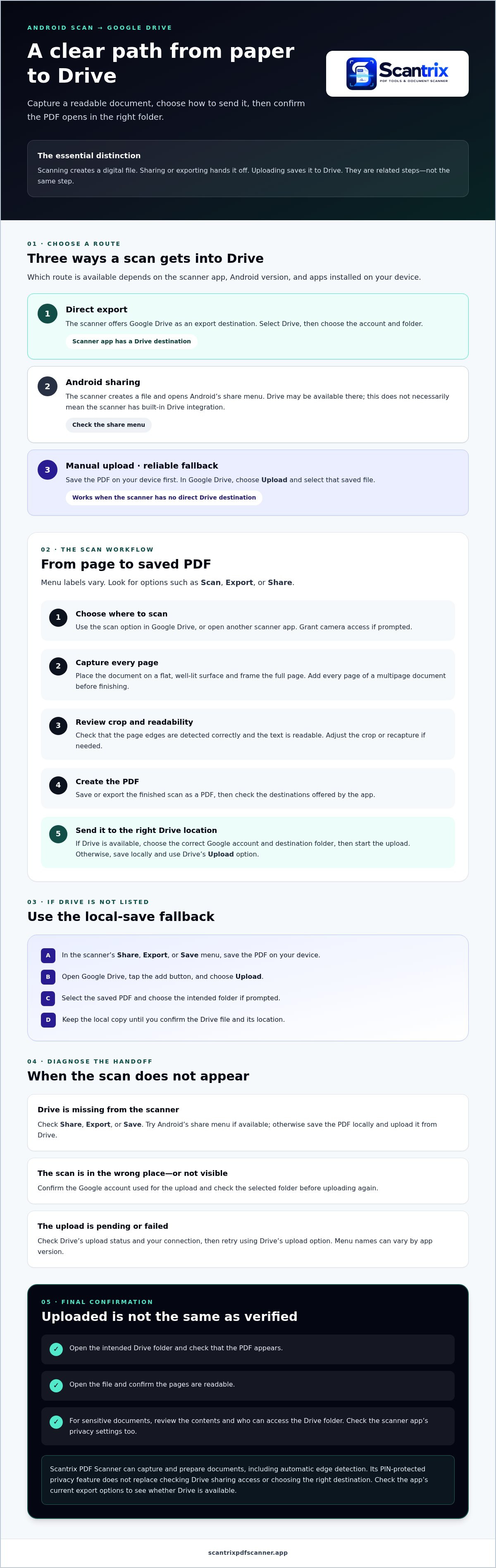
- Direct export: The scanner app offers Drive as a destination. Select it, then choose where to save the scan.
- Android sharing: The app creates a file and opens Android’s share menu. Drive may appear as an option, but the handoff uses Android’s sharing tools.
- Manual upload: The app saves the PDF on your device first. You then open Drive and upload the saved file.
Available destinations depend on the scanner app, your Android version, and the apps installed on your device. Drive may be missing because the scanner doesn’t support it, Drive isn’t available in the share menu, or the app’s export options have changed.
Does a scanner app need Google Drive integration?
For a built-in Drive destination, the scanner app must support Drive in its export workflow. Android’s share menu may still let you send an exported PDF to Drive, but that doesn’t mean the scanner has its own Drive integration.
Check the app’s export options rather than assuming direct export is available.
For example, Scantrix can capture documents and prepare PDFs. Check its current export options or Android’s share menu to see whether Drive is available. If neither offers it, save the PDF locally and upload it from the Drive app.
How to scan a document to Google Drive on Android
You can scan within Google Drive or use a separate scanner app. Menu labels vary, so look for options such as Scan, Export, or Share.
- 1. Choose how to scan. To scan in Drive, open the app and look for its scan option. To use another scanner, open that app and grant camera access if prompted. Scantrix PDF Scanner is an Android option for capturing documents and preparing PDFs, with automatic edge detection.
- 2. Capture the page. Place the document on a flat, well-lit surface and frame the full page. For a multipage document, add every page before finishing the scan.
- 3. Review the crop and image. Check that the page edges are detected correctly and that the text is readable. Adjust the crop or recapture the page if needed.
- 4. Create the PDF. Save or export the finished scan as a PDF, then check the destinations offered by the app.
- 5. Choose Drive if it’s available. Select Google Drive, choose the correct Google account and destination folder, then start the upload.
Choose the right export route for your Android setup
Check the scanner’s Share, Export, or Save menu. If Drive isn’t listed, save the PDF on your device. You can also use Android’s share menu if Drive appears there. Sharing through Android doesn’t necessarily mean the scanner has built-in Drive integration.
For a reliable fallback, open Google Drive, tap the add button, choose Upload, and select the saved PDF from your device. Choose the intended folder if prompted. This route works even when the scanner has no direct Drive destination. Consider the Scantrix Android PDF scanning app for capturing and preparing scans, and check its current export menu to confirm the available handoff methods.
Check the upload, fix common issues, and choose a scanner workflow
A completed scan isn’t confirmed until you can find and open it in Drive. Open the destination folder, check that the PDF appears, and tap it to make sure the pages are readable. Keep the local copy until you’ve verified both the file and its location.
Before sharing or storing a sensitive document, review what it contains and who can access the Drive folder. Check the scanner app’s privacy settings, too. Scantrix includes PIN-protected privacy, but that doesn’t replace checking Drive sharing access or choosing the right destination.
What to do when a scan does not appear in Google Drive
Check the likely causes in order. Confirm you’re viewing the Google account used for the upload, then check the selected folder and Drive’s upload status. If the upload is pending or failed, check your connection and try again. Menu names may vary by app version.
- Drive is missing from the scanner: Check the Share, Export, or Save options. If direct export isn’t available, save the PDF locally.
- The scan is in the wrong place: Check other folders and confirm the account before uploading again.
- The upload won’t finish: Check your connection and the upload status, then retry using Drive’s upload option.
To use the fallback, open Drive, tap the add button, choose Upload, and select the saved PDF. When it appears in the intended folder and opens correctly, you can remove the local copy if you no longer need it. This check-and-confirm routine makes your scan directly to google drive android workflow more dependable, whether the scanner offers direct export or not.
Choose a scanner based on the capture and privacy features you need, then verify its current export options. Use a consistent folder and file-naming system, such as naming files by document type and date, so completed scans are easier to find.
Build a Reliable Scan-to-Drive Routine
A dependable way to scan directly to google drive android starts with a readable PDF and ends with a quick check in Drive. Direct export depends on the scanner app’s available destinations. If Drive isn’t listed, save the PDF and upload it through the Drive app. Confirm the account and folder, then open the file before deleting the local copy.
For document capture and preparation, Scantrix offers Android PDF scanning with automatic edge detection, OCR text extraction, and PIN-protected privacy. Check the app’s current export options to choose the right handoff, and review privacy settings before sharing sensitive files.
Set up a simple capture, upload, and verification routine. For help with the app or your scanning workflow, contact Scantrix about app and workflow questions.
Frequently Asked Questions
Can I scan directly to Google Drive on Android?
Yes. Google Drive’s Android app can scan a paper document and save the resulting file to Drive. The phrase “scan directly to google drive android” can mean scanning inside Drive. You can also use a separate scanner app, but direct export depends on whether that app lists Drive as a destination. If it doesn’t, save the PDF and upload it through Drive.
How do I upload a scanned PDF to Google Drive from Android?
Open Google Drive and sign in to the account where you want the file. Tap the add button, choose Upload, then select the scanned PDF from your device. Choose the destination folder if prompted. Wait for the upload to finish, then open the folder and tap the PDF to confirm it uploaded and displays correctly.
Does Scantrix PDF Scanner send scans directly to Google Drive?
Check the export options in your installed version of Scantrix PDF Scanner or Android’s share menu to see whether Drive is available. Scantrix can capture documents and create PDFs, but the available handoff depends on those options. If Drive isn’t available, save the PDF on your device and upload it from the Drive app.
Why is my scanned PDF not appearing in Google Drive?
First, confirm you’re viewing the same Google account used for the upload and check the intended folder. Then review Drive’s upload status and your internet connection. A pending or failed upload may need to be retried. If you shared from a scanner app, check whether the file was sent to Drive. Otherwise, upload the saved PDF directly through Drive.


