
What good is a business card scan if you can’t read the number or find it later? Paper cards are easy to collect and just as easy to lose in a pile. Glare, shadows, and tiny print can turn a quick photo into an unreliable record. To scan business cards to pdf, you need more than a saved image. You need a clear copy that’s easy to retrieve.
An Android scanner such as Scantrix PDF Scanner can capture and organize PDFs. Its listed features include automatic edge detection and OCR text extraction. Still, check names, numbers, and email addresses against the original because OCR can misread small or stylized print. This guide covers a repeatable workflow for capturing cards, checking the scan, reviewing extracted text, and naming each file consistently.
Key Takeaways
- A PDF preserves the card’s visible layout in a portable document that you can file and retrieve.
- Use a steady overhead camera position, even lighting, and a contrasting surface to scan business cards to pdf more clearly.
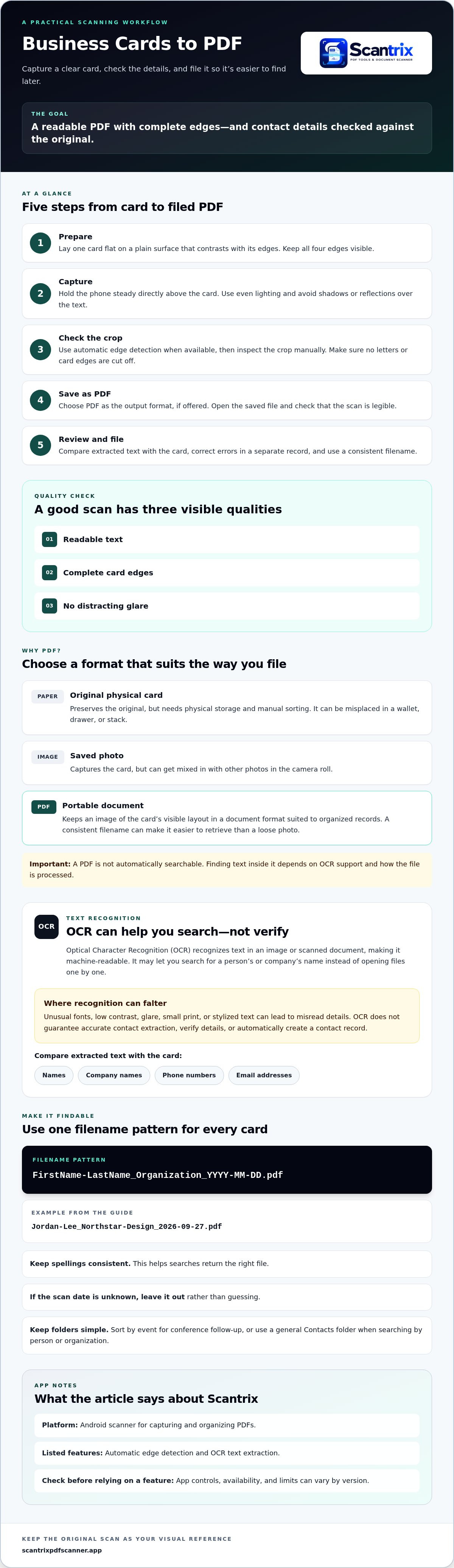
- Follow a simple sequence: prepare the card, capture it, check the crop, save as a PDF, and review the file.
- Use consistent filenames that include the person’s name, organization, and scan date when known.
Why scan business cards to PDF instead of keeping paper copies?
Paper cards preserve the original, but they’re easy to misplace in a wallet, drawer, or stack. A business-card PDF keeps an image of the card’s visible layout, including its design and printed details. It’s easier to store and share than a paper copy. With a consistent filename, it can also be easier to retrieve than a loose photo in a camera roll.
Each format has trade-offs. Paper needs physical storage and manual sorting. An image file captures the card but can get mixed in with other photos. A PDF keeps the scan in a document format suited to organized records. However, a PDF isn’t automatically searchable. Finding text within it depends on OCR support and how the file is processed.
What does OCR do when you scan a business card?
Optical Character Recognition (OCR) is software that recognizes text in an image or scanned document, making it machine-readable. With OCR, you may be able to search for a person’s or company’s name instead of opening files one by one. OCR doesn’t guarantee accurate contact extraction or create a verified contact record.
Recognition can falter when a card uses unusual fonts, low contrast, or has glare. Scantrix PDF Scanner lists OCR text extraction as a capability, but availability and limits can vary by app version. After you scan business cards to pdf, compare extracted text with the original. Check names, phone numbers, email addresses, and company names before using the details for follow-up or entering them into records.
How to Scan Business Cards to PDF with a Phone
A repeatable process helps you create a clean file without cutting off details. Prepare one card, capture it, inspect the crop, save it as a PDF, then review the finished scan. Place the card flat on a plain surface that contrasts with its edges. Use even lighting, avoid reflections, and hold your phone steady above the card.
A good scan has readable text, complete edges, and no distracting glare. Scantrix PDF Scanner lists automatic edge detection and OCR text extraction among its features. App controls and availability can vary by version, so check the current options before relying on a specific workflow.
How can you get a clean, readable card scan?
- Set up: Place one card flat and keep all four edges visible.
- Capture: Position the camera directly overhead. Keep the phone steady, and adjust the light if a shadow or reflection crosses the text.
- Check: Use automatic edge detection when available, then inspect the crop manually. Make sure no letters or card edges are cut off.
- Save and review: Choose PDF as the output format, if offered, then open the saved file and check that it’s legible.
Test OCR on the finished scan if your app version supports it. Compare any extracted text with the card, then correct errors in a separate record. Check names, phone numbers, and email addresses carefully. For wider business recordkeeping context, the IRS guidance on business recordkeeping discusses maintaining organized records. It doesn’t specifically address business-card scans.
An Android scanner with PDF capture and edge detection can support this workflow. Explore the Scantrix PDF Scanner, a free Android app for capturing and organizing PDFs, as one option to scan business cards to pdf.
How to organize business-card PDFs for reliable follow-up
A clear scan is only useful if you can find it later. Pick one filename pattern and use it for every card: FirstName-LastName_Organization_YYYY-MM-DD.pdf. For example, Jordan-Lee_Northstar-Design_2026-09-27.pdf. If you don’t know the scan date, leave it out rather than guessing. Keep spellings consistent so searches return the right file.
How should you store and retrieve scanned business cards?
Choose folders based on how you’ll look for a card. Sort by event if you follow up after conferences, or use a general Contacts folder if you search by person or organization. Avoid creating too many categories. A simple structure is easier to maintain.
Review OCR text before using it for follow-up or entering details into another record. Check names, company names, phone numbers, and email addresses against the PDF. OCR can make text searchable, but it doesn’t confirm that the details are correct or automatically create a contact record. Keep the PDF as your visual reference.
If you’re comparing Android tools, CNET’s overview of best scanning apps offers another starting point. Scantrix PDF Scanner is an Android option for capturing and organizing PDFs, with listed OCR text extraction and automatic edge detection. Check the current app workflow and feature availability before settling on a process. To scan business cards to pdf with a phone, explore Scantrix PDF Scanner.
Build a Business-Card Filing Habit That Lasts
A useful scan starts with a clear capture and ends with a file you can find. Use even lighting, check that the full card appears in the crop, and open the saved PDF to confirm it’s readable. OCR can make text easier to search, but verify names and contact details before relying on them. A consistent filename with the person’s name, organization, and scan date gives each card a clear place in your records.
Scantrix PDF Scanner is an Android option for capturing and organizing PDFs. Its listed features include automatic edge detection and OCR text extraction. Check the current app workflow and feature availability for your version. OCR doesn’t guarantee correct contact details or create contact records automatically.
Ready to replace paper stacks with a repeatable phone-based process? Ask about scanning business cards with Scantrix. Use a clear capture and consistent filing system to make each PDF easier to retrieve.
Frequently Asked Questions
How do I scan a business card to PDF on Android?
Use an Android scanning app that supports PDF output. Place the card on a contrasting surface under even light, hold your phone steady above it, and capture the full card. Check the detected edges, adjust the crop if needed, then save as a PDF and review the file. To scan business cards to pdf with Scantrix, check the current app workflow and available features in your version.
Can OCR read the text on a business card accurately?
OCR can recognize and extract printed text, but accuracy isn’t guaranteed. Small type, unusual fonts, low contrast, glare, or a blurry capture may lead to errors. Review extracted names, company details, phone numbers, and email addresses against the card before using them for follow-up. Scantrix lists OCR text extraction as a feature, though availability and limits may vary by app version.
Can I turn a scanned business card into a phone contact automatically?
Scantrix’s listed capabilities don’t include automatic contact creation. Its OCR text extraction can recognize text, but don’t assume the app will create phone contacts automatically. After scanning, verify the details and enter them into your contacts app or another contact-management tool if needed. Check the other app’s features before relying on automatic contact creation.
What is the best way to name and organize business-card PDFs?
Choose a consistent filename pattern, such as FirstName-LastName_Organization_YYYY-MM-DD.pdf, and use the scan date only when known. Store files in folders that match how you search, such as by event or in a general Contacts folder. Keep the structure simple, and verify OCR text before using details for follow-up or record entry.


