
A scan can look sharp and still produce text full of errors. If you’re searching for an “ocr text extraction app android” users can rely on, the image matters as much as the app. Retyping forms, notes, or receipts takes time, while a crooked page, glare, or blur can create more corrections instead of saving effort.
This guide explains how OCR turns document images into editable text, how to improve recognition with cleaner captures, and what to look for in a scanning app. Scantrix PDF Scanner is a free Android app for capturing documents, extracting text, and organizing PDFs in one workflow. Learn how automatic edge detection and the edit-to-scan workflow support cleaner captures, what to check in extracted text, and how PIN-protected privacy fits into document handling. OCR can save typing, but reviewing the result helps catch mistakes.
Key Takeaways
- An image-only scan stores a picture; OCR can make recognized text searchable and copyable.
- Use an ocr text extraction app android workflow that captures a clear page, checks the crop, then reviews the recognized text.
- Assess capture controls, text review, PDF handling, and privacy features when choosing a scanning app.
- Scantrix PDF Scanner combines document capture, OCR, and PDF organization in one Android app.
What Does an OCR Text Extraction App for Android Do?
OCR, or optical character recognition, identifies characters in an image and converts them into machine-readable text. This lets a device process printed words as text rather than treating a document only as a picture. For a wider overview of the technology, see What is Optical Character Recognition (OCR)?
An image-only scan preserves the page visually. You can view it, but its words may not be searchable or selectable. An OCR-processed document includes recognized text, so you can often search for a name, copy a passage, or reuse details without typing the whole page. An OCR text extraction app for Android can help turn printed notes, forms, receipts, or reference pages into text you can work with.
In brief: An image scan stores what the page looks like; OCR adds text a device can recognize and process.
What affects OCR text extraction quality on Android?
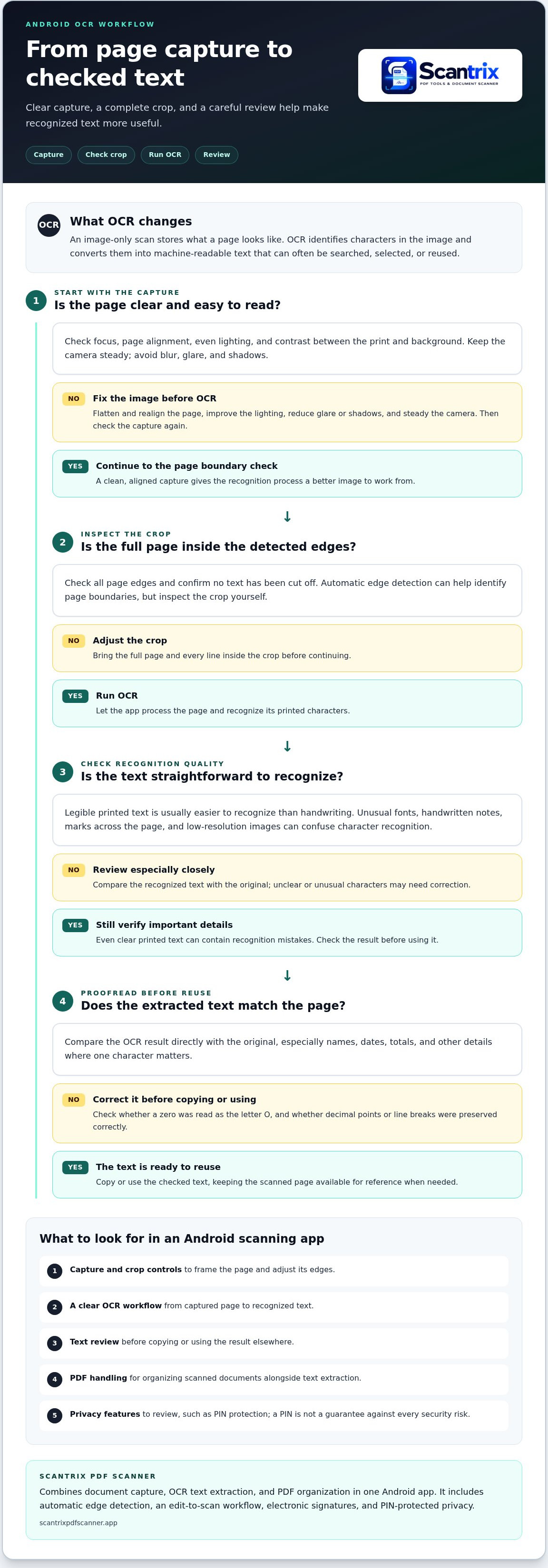
Recognition depends on image quality. Keep the camera in focus, use even lighting, align the page, and make sure the print stands out clearly from the background. Avoid shadows, glare, blur, and cropped edges. Smart edge detection in Scantrix PDF Scanner helps identify page boundaries during capture, but check that the full page is inside the crop before continuing.
Legible printed text is usually easier to recognize than handwriting. Unusual fonts, handwritten notes, marks across the page, and low-resolution images can confuse character recognition. Review the extracted text, especially names, dates, totals, and other details where one mistaken character matters. For example, check whether a zero has been read as the letter O and whether decimal points or line breaks have been preserved correctly. Scantrix PDF Scanner combines document capture with OCR text extraction, keeping those steps in one workflow.
How to Extract Text with an OCR App on Android
A useful OCR workflow starts before recognition. Follow these steps to capture a page, convert it, and check the result:
- Open a scanner. Start an Android scanning app with OCR text extraction.
- Capture a page. Place the document on a flat, contrasting surface, use even light, and keep the camera steady.
- Check the crop. Make sure the full page is inside the detected edges and no text is cut off. Adjust the crop if needed.
- Run OCR. Let the app process the page and recognize its printed characters.
- Review the text. Compare the result with the original before copying or reusing it.
This process helps an OCR text extraction app for Android produce text that needs fewer corrections. Proofread names, dates, figures, and other important details. A small recognition error can change a person’s name or turn a receipt total into the wrong number, so compare these details directly with the page before using them.
How can you improve results before running OCR?
Fix image problems before processing. Keep the page flat, avoid glare and shadows, and capture one clear, well-lit page at a time. Automatic edge detection can guide the crop, but inspect it yourself to confirm that every line is included. Scantrix PDF Scanner includes automatic edge detection to support document capture. For more on improving page framing, see the guide How to Copy Text from a Scanned Document on Android.
For a capture-and-OCR workflow in one place, explore the Scantrix PDF Scanner App.
Choose an OCR Text Extraction App for Android That Fits Your Workflow
The right app should support the full document process, not just take a picture. Before choosing an OCR text extraction app for Android, consider whether it offers:
- Capture and crop controls: Tools to frame the page and adjust its edges help prevent cut-off text.
- A clear OCR workflow: It should be straightforward to move from a captured page to recognized text.
- Text review: You should be able to inspect the result before copying or using it elsewhere.
- PDF handling: Consider whether you can organize scanned documents alongside text extraction.
- Privacy features: Review available protections, such as a PIN, and handle sensitive files thoughtfully.
Can one Android scanning app handle capture, OCR, and document organization?
Yes. Scantrix PDF Scanner combines document capture, OCR text extraction, and PDF organization in one Android app. Automatic edge detection supports page framing, while the edit-to-scan workflow lets you refine a capture before continuing. For more on how edge detection supports a cleaner capture, read Smart Scanning: The Ultimate Guide to Auto Edge Detection PDF Scanners.
The app also includes electronic signatures and PIN-protected privacy. A PIN is one app feature, not a guarantee against every security risk, so use care when storing or sharing sensitive documents.
To learn more about how capture, OCR, and PDF organization work together, visit the Scantrix PDF Scanner app overview.
Make Your Next Scan More Useful
Good OCR starts with a clean capture and ends with a checked result. Keep the page clear and aligned, inspect the crop, then proofread extracted text before reusing important details. When choosing an OCR text extraction app for Android, consider how it handles capture, PDFs, and privacy as well as text recognition.
Scantrix PDF Scanner combines OCR text extraction with document capture and PDF organization. Automatic edge detection helps frame pages, and PIN-protected privacy is available as an app feature. Together, these tools support a practical workflow from scan to organized document.
For questions about Scantrix, visit the contact page. To explore the app and its scanning workflow, visit Scantrix PDF Scanner.
Frequently Asked Questions
What is an OCR text extraction app for Android?
An OCR text extraction app recognizes characters in a document image and converts them into machine-readable text. Unlike a plain scan, which is only a picture of a page, recognized text can be searched, selected, or reused. An Android scanning app can combine page capture and OCR so printed content becomes easier to find and copy.
How do I extract text from a document image on Android?
An OCR text extraction workflow usually starts by capturing a page. Check that the full page is inside the crop, then run OCR to recognize its text. Review the output before copying or using it. App interfaces vary, so the names and order of controls may differ, but the capture, crop, process, and proofread steps remain useful.
Can OCR apps extract text accurately from photos?
OCR apps can recognize text in photos, but results depend on focus, lighting, page alignment, print quality, and overall image clarity. A sharp, well-lit image of legible print is easier to process than a blurry, shadowed, or tilted photo. Recognition can still make mistakes, so check names, dates, figures, and other important details against the original before relying on them.
Is it safe to use an OCR app for private documents?
Use care with private documents: review the app’s privacy information and requested device access, and keep only necessary files in your scanning workflow. If available, use protections such as a PIN. Scantrix PDF Scanner includes PIN-protected privacy, but a PIN isn’t a guarantee against every security risk. Consider document sensitivity before storing or sharing a scan.


