
Stop proofreading static images manually. It's a waste of your professional time. You likely struggle with "dead" documents that refuse to yield their data. This guide solves that problem by showing you how to search text in scanned documents android users can rely on for high-speed results. A photograph of a contract isn't a resource; it's a digital paperweight. You need immediate access to keywords without the friction of manual searching.
You'll learn to transform flat images into searchable digital assets using high-speed OCR technology. It's about speed. It's about precision. We'll cover the two-step process of high-fidelity extraction and indexed PDF generation. From smart edge detection to secure archives, you're about to turn your mobile device into a high-performance document architect. Results are instant. Efficiency is the priority. Let’s begin.
Key Takeaways
- Convert static pixels into searchable data. Use OCR technology to unlock hidden text layers within flat image files.
- Master how to search text in scanned documents android via the Scantrix PDF Scanner App for professional-grade indexing.
- Utilize Smart Edge Detection and OCR Text Extraction. High-resolution input ensures maximum search accuracy and reliable keyword recognition.
- Build a searchable digital archive. Organize indexed PDFs into secure folders for instant keyword location across your mobile device.
Why Standard Scans Aren’t Searchable: The OCR Solution
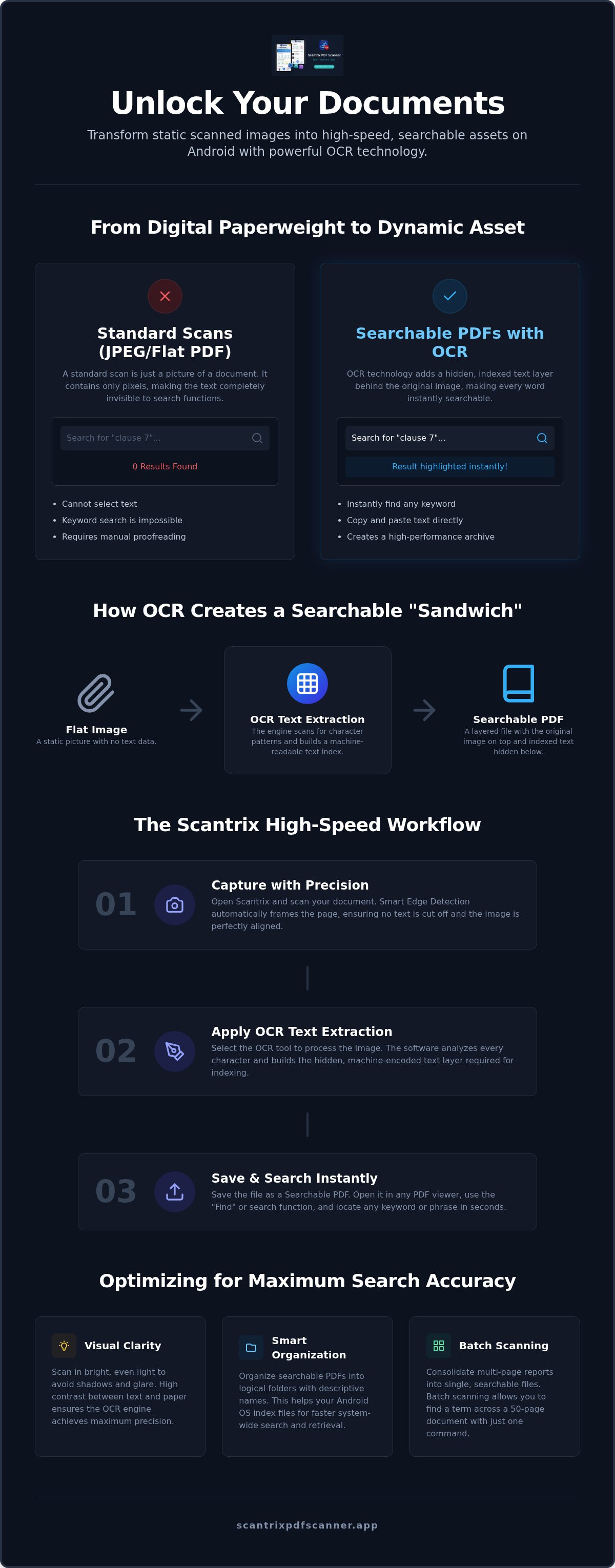
Capture a document with a basic camera app. It creates a JPEG or a flat PDF. These are digital photographs. They consist of pixels, not characters. Search engines cannot read pixels. They see shapes but lack text data. This is the core problem when learning how to search text in scanned documents android users face. Without an underlying data layer, your files are functionally invisible to search queries.
Optical Character Recognition (OCR) acts as a digital translator. It scans shapes. It maps symbols. It converts visual patterns into machine-encoded text. This transformation turns static images into dynamic assets. It replaces manual proofreading. Retrieval is instant. The technology identifies character patterns and builds a searchable database from physical paper.
Searchable PDF vs. Standard PDF
A standard PDF is often just a container for a flat image. It looks like a document but behaves like a picture. You cannot select text. You cannot search for keywords. A searchable PDF uses a "sandwich" format. The original high-resolution scan sits on the top layer. A hidden, indexed text layer resides directly behind it. This structure allows you to interact with the text while keeping the document's original appearance intact.
Scantrix OCR Text Extraction is the engine for this transformation. It identifies text and builds the index. This professional utility ensures every word in your contracts is fully indexed. You gain immediate access to your data. Your digital archive becomes a high-performance tool rather than a collection of unsearchable files. Efficiency is the priority. Results are guaranteed.
How to Search Text in Scanned Documents on Android
Transforming a physical document into a searchable asset requires technical precision. Use the Scantrix PDF Scanner App for the initial capture. High-resolution input is non-negotiable. Blurred text leads to failed queries and missed keywords. Once captured, apply the integrated OCR Text Extraction tool. This utility identifies every character on the page. It builds a digital index within the file structure. Finally, save the output as a Searchable PDF. This specific format enables the native "Find" function in any standard PDF viewer. You can now locate specific clauses in a twenty-page contract in seconds. This is the most reliable method for how to search text in scanned documents android professionals use today.
Step-by-Step Search Workflow
Systematic organization ensures consistent results. Follow this direct sequence for maximum efficiency:
- Open Scantrix. Tap the camera icon to initiate the capture sequence.
- Position the document. Smart Edge Detection automatically identifies the paper borders. It ensures no text is cut off during the process.
- Review the scan for clarity. Select the OCR tool to begin machine-encoded processing.
The software analyzes character shapes. It creates the hidden text layer required for indexing. Once processing completes, save the result to your local storage or cloud service. You have successfully implemented the workflow for how to search text in scanned documents android devices require for high-performance output. Test the searchability immediately. Open your new file. Press the magnifying glass icon. Type your target keyword. The result should be highlighted instantly. This workflow eliminates the friction of manual proofreading. It saves hours of administrative labor. Maintaining a searchable digital archive is now a seamless task.
Optimizing Scans for Maximum Search Accuracy
Search accuracy depends on visual clarity. Lighting and contrast dictate OCR success. Shadows obscure characters. Glare creates digital dead zones. Use bright, even light for every document capture. High contrast ensures the extraction engine maps glyphs with precision. This is the baseline for how to search text in scanned documents android users need for professional results. Better input yields faster search results. Low-quality images lead to missed keywords and failed queries.
Structure determines retrieval speed. Organize your searchable PDFs into logical folders. This helps the Android OS index your files for system-wide queries. Use descriptive naming conventions to complement the internal text index. Security is equally vital. For sensitive contracts or personal records, apply PIN-Protected Privacy. Remember that searchable text is inherently readable. Secure your digital archive to prevent unauthorized data exposure while maintaining instant accessibility. Professionalism requires both speed and safety.
Managing Searchable Document Libraries
Efficiency requires scale. Don't scan pages individually. Use batch scanning to consolidate multiple sheets into a single, searchable report. This creates a unified data asset. You can locate specific terms across a fifty-page document with one command. It eliminates the need to open multiple files. The process is rapid. It is systematic. It turns a stack of paper into a high-performance database.
Transformation is the final step. Once you locate your data, you might need to repurpose it. Learn how to copy text from a scanned document on android to move indexed information into emails or spreadsheets. This creates a seamless mobile workflow. Your Android device becomes a high-performance workstation. Every scan becomes a functional tool. Every search becomes an immediate solution. This is how to search text in scanned documents android workflows are optimized for 2026 standards.
Master Your Digital Archive
Static images are no longer a barrier to your professional productivity. You now understand the technical transition from flat pixels to indexed data layers. By prioritizing high-resolution captures and smart edge detection, you ensure every keyword is instantly retrievable. This systematic approach to how to search text in scanned documents android users require transforms your mobile device into a high-performance database. You gain speed. You gain precision. You gain absolute control over your professional data.
Experience the technical difference with a tool built for extreme efficiency. Download Scantrix PDF Scanner for Android to access integrated OCR Text Extraction and secure PIN-protected privacy for your sensitive files. You'll benefit from zero watermarks on every export and a streamlined workflow. Start building your searchable digital library today. Your archive is ready for high-speed retrieval.
Frequently Asked Questions
Can I search for text in a photo I already took on Android?
Yes. Import existing gallery images into Scantrix. The OCR Text Extraction engine processes the file immediately. It identifies character shapes and creates the hidden text layer. This method allows you to retroactively index old photos. This is a rapid solution for how to search text in scanned documents android users need. Transformation is instant. Results are accurate.
Does OCR work on handwritten notes for searching?
Success depends on legibility. High-fidelity OCR identifies clear handwriting. Block letters yield the best search results. Cursive or messy scripts often lead to character recognition errors. Use high-contrast lighting during the scan to improve accuracy. Clean input is essential for reliable indexing. Scantrix handles neat handwriting effectively. It turns physical notes into searchable digital assets.
Why can’t I find words in a PDF I downloaded?
The file is likely a flat image. Many downloads are just "pictures" of documents. They lack an underlying text layer. Search engines cannot read these pixels. You must run the file through Scantrix OCR Text Extraction. This process adds the required data layer. Once indexed, the native "Find" function will work perfectly. It's a standard fix for non-searchable assets.
Is there a limit to how many pages I can make searchable?
Limits vary by software configuration. Scantrix supports batch processing for long reports. You can create a single searchable PDF from dozens of pages. This is the professional way how to search text in scanned documents android devices handle large volumes. Ensure your device has sufficient storage and RAM. Large files remain searchable without performance lag. Efficiency scales with your needs.


