
Manual retyping is a relic of the past. It wastes time. It invites errors. It halts productivity. You've likely stared at a "dead" image of a contract or receipt, wishing you could just grab the data. Knowing how to copy text from a scanned document on android is no longer a luxury; it's a professional necessity in 2026. Static images shouldn't trap your information. You need a bridge from physical paper to digital action. This transition must be seamless, fast, and accurate.
You deserve precision without the friction of low-quality apps that produce gibberish. This guide delivers that standard. Learn how to transform static scans into editable text instantly using professional OCR tools like Scantrix. We explore smart edge detection, high-accuracy extraction, and secure sharing across your mobile workflow. Stop struggling with images. Start managing data with total efficiency. Your digital architect is ready.
Key Takeaways
- Unlock static documents. Convert flat images into editable data layers using advanced Optical Character Recognition technology.
- Master how to copy text from a scanned document on android with professional-grade mobile tools. Optimize lighting and alignment for maximum character accuracy.
- Achieve high-precision results. Leverage Scantrix's automatic edge detection to ensure clean, error-free text extraction every time.
- Secure your workflow. Protect sensitive information with PIN-protected privacy while maintaining a rapid, seamless transition from physical to digital.
Understanding the Image-Based PDF Hurdle on Android
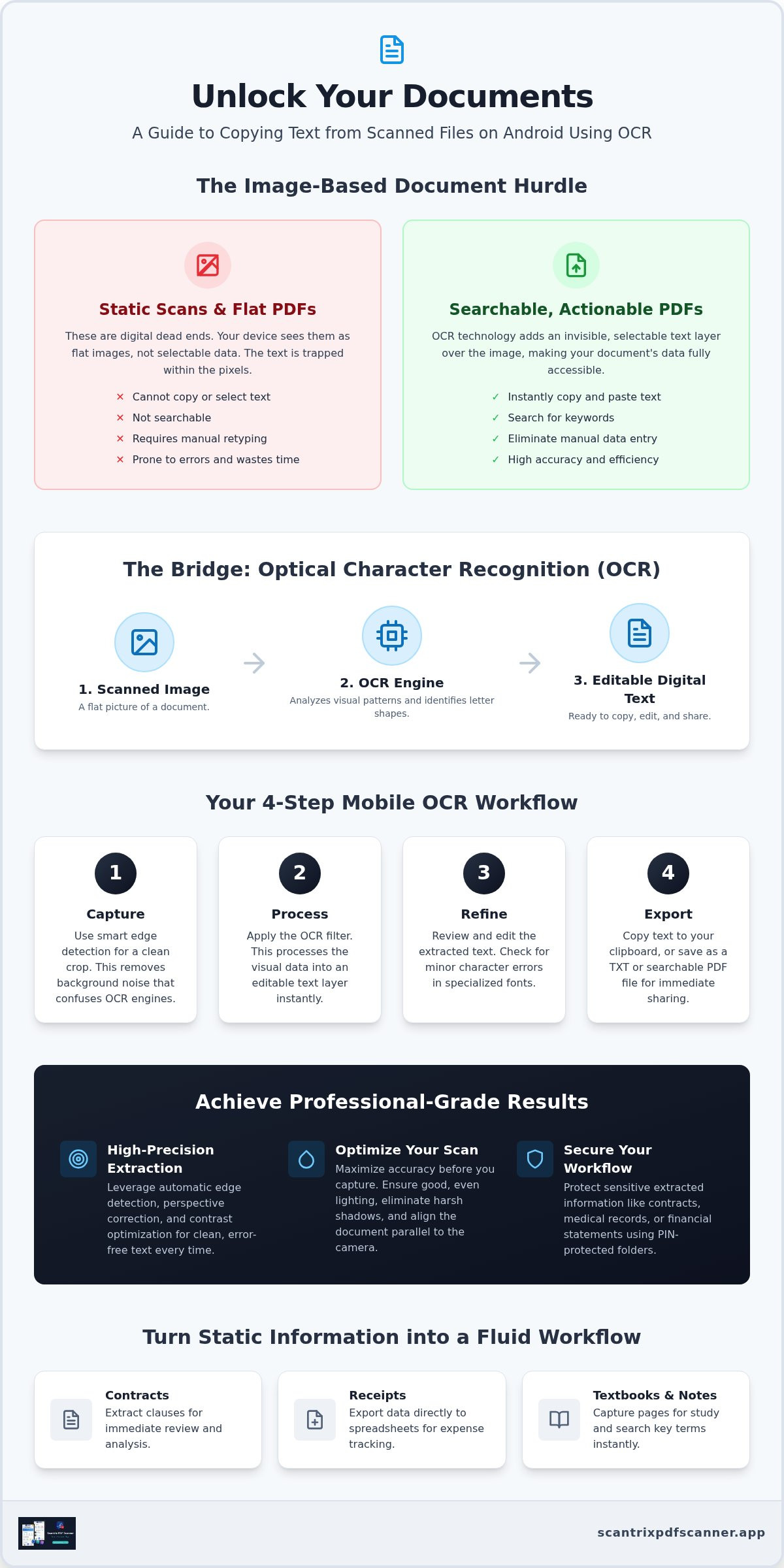
Standard scans are digital dead ends. They are flat pixels. A basic camera snap creates a static image, not a selectable data set. This is the primary obstacle when learning how to copy text from a scanned document on android. Your device sees colors and shapes. It doesn't see words. You cannot highlight a "flat" PDF because the text doesn't exist as data yet.
Bridging this gap requires Optical Character Recognition (OCR). This technology analyzes visual patterns. It identifies specific letter shapes. It converts those shapes into digital strings. Professional document scans differ from simple photos. They use smart edge detection. They correct perspective. They optimize contrast. This ensures the OCR engine produces accurate results, not gibberish.
Scanned Images vs. Searchable PDFs
Searchable PDFs house an invisible text layer over the visual scan. This allows for highlighting and searching. Manual retyping is obsolete. It's slow. It's prone to error. Automated extraction provides instant results. Use this for contracts, receipts, or textbook pages. Mastering how to copy text from a scanned document on android ensures your data is never trapped.
- Contracts: Extract clauses for immediate review.
- Receipts: Export data directly to spreadsheets.
This systematic approach turns a dead image into a fluid workflow. Your device becomes a high-performance data processing hub. Information remains mobile, editable, and ready for immediate professional use.
How to Extract Text with an OCR Scanner App on Android
Efficiency starts with selection. Avoid slow web converters. Choose a high-performance app built specifically for Android's architecture. This is the first step in learning how to copy text from a scanned document on android with professional accuracy. Understanding how OCR technology works allows you to optimize the environment. Lighting is critical. Eliminate harsh shadows. Align the document parallel to the camera sensor. These technical adjustments maximize character recognition accuracy before the first pixel is captured. High-quality input leads to high-precision output.
Speed depends on integration. Initiate the extraction process directly within your scanning workflow. Don't waste time with manual uploads. A professional Android scanner app streamlines the transition from physical paper to digital text. It acts as a silent assistant. It turns recognition into a single-tap action. This is the most reliable way to master how to copy text from a scanned document on android while maintaining professional-grade standards. Results are instant. The process is seamless. Transform static images into actionable data layers in seconds.
The 4-Step Mobile OCR Workflow
- Capture: Use smart edge detection for a clean crop. This removes background noise that confuses OCR engines.
- Process: Apply the OCR filter. This processes visual data into editable text layers instantly.
- Refine: Review and edit the extracted text. Check for minor character errors in specialized fonts or handwritten notes.
- Export: Copy text to your clipboard. Save as a TXT or searchable PDF file for immediate sharing.
This systematic workflow ensures high-performance results. It eliminates manual retyping. It secures your productivity. Your device becomes a professional extraction hub. You gain full control over your document data without friction. Action meets result.
Maximizing Accuracy with Scantrix Professional Extraction
High-performance results require high-performance tools. Scantrix delivers professional-grade accuracy through its advanced OCR engine. It processes complex layouts and varied fonts with ease. This is the definitive solution for how to copy text from a scanned document on android without the risk of manual errors. Utilize the unique 'Edit-to-Scan' workflow. Refine your document before you extract data. Clean the image background. Sharpen the character edges. This proactive refinement ensures the highest character recognition rates possible. It is the most efficient way to master how to copy text from a scanned document on android for professional use.
Data security is a non-negotiable requirement in 2026. Most basic tools ignore user privacy. Scantrix prioritizes it. Protect sensitive extracted information using PIN-protected folders. Your data remains local. It stays secure. This feature is essential for handling legal contracts, medical records, or private financial statements. Secure the transition from physical paper to digital data effortlessly. You maintain total control over your professional information. No leaks. No unauthorized access. Just secure, high-speed results.
Beyond Copy-Paste: Organizing Your Extracted Data
Organization drives long-term productivity. Don't just copy text; manage it systematically. Use Scantrix to organize extracted data into searchable digital folders. Find specific clauses or figures instantly. Streamline your data entry by sharing text directly to email, Slack, or professional CRM apps. This eliminates the friction of switching between multiple platforms. It accelerates your entire business workflow. Scantrix transforms your Android device into a high-performance mobile office that handles complex document tasks with silent, expert precision.
Master Your Mobile Document Workflow
Static images are digital dead ends. You've seen the hurdle. You've learned the solution. Mastering how to copy text from a scanned document on android is about speed. It's about accuracy. Professional results require more than basic snapshots. You need automatic edge detection to ensure clean crops. You need high-accuracy OCR to eliminate manual retyping. Most importantly, you need PIN-protected security to keep sensitive information private. Organize your files instantly. Share results across any platform with one tap. This is how you stay productive in 2026. Don't settle for low-quality tools that produce gibberish. Experience a seamless transformation from paper to data. Download Scantrix PDF Scanner for professional OCR today and turn your device into a high-performance assistant. Your productivity deserves precision. Start your transformation now.
Frequently Asked Questions
Is OCR text extraction on Android accurate for handwriting?
Handwriting accuracy depends heavily on legibility and ink contrast. Modern AI-driven engines in 2026 now achieve high precision with neat cursive and block lettering. Results vary based on pen thickness and paper texture. Clean scans with proper lighting maximize your output quality. Always use high-performance tools to ensure the most reliable character recognition for non-digital notes and signatures.
Can I extract text from a PDF that is password protected?
No. You must provide the correct credentials to unlock a password-protected file before initiating any extraction. Once decrypted, you can apply OCR to the document contents. This security layer prevents unauthorized data theft. Always ensure you have legal access to the file first. After unlocking, the workflow for how to copy text from a scanned document on android remains identical to standard files.
What is the best OCR text extraction app for Android in 2026?
Scantrix PDF Scanner is the premier choice for professional extraction results. It combines high-accuracy OCR with smart edge detection for cleaner data sets. Users benefit from PIN-protected privacy and a seamless mobile-first workflow. While tools like Google Lens offer basic on-device extraction, Scantrix provides a dedicated environment for document management and secure storage. It's built for high-performance, expert-level productivity.
Does OCR work offline on most Android scanning apps?
Offline functionality depends on the specific application architecture. Many modern tools utilize on-device processing to enhance user privacy and operation speed. This allows you to process documents without an active internet connection. On-device OCR prevents sensitive data from reaching third-party servers. Check your app settings to confirm if local extraction is enabled. This ensures a rapid, secure transformation from physical to digital states anywhere.


