
What good is a receipt scan if you can’t read it or find it when tax time arrives? Paper fades, slips disappear, and a folder of unlabeled images can become another kind of clutter. If you searched “how to scan receipts for taxes android,” the goal is to create clear files you can retrieve later.
This guide covers how to capture receipts with your Android phone, check scan quality, label expenses, and organize files for faster searching. You’ll also learn how OCR can help surface receipt details and where PIN protection may add privacy. A digital copy still needs to be accurate and readable. Record-retention rules depend on your tax authority and situation, so check what applies before discarding paper originals. A repeatable workflow makes tax-time records easier to manage.
Key Takeaways
- When learning how to scan receipts for taxes android, frame each receipt clearly and check the scan before saving it.
- Use filenames with the date, merchant, and expense category to make receipts easier to search and retrieve.
- Group PDF files by tax year and category, and consider keeping a separate backup.
- Check the rules that apply to your tax situation before deciding whether to discard paper originals.
How to scan receipts for taxes android: capture every key detail
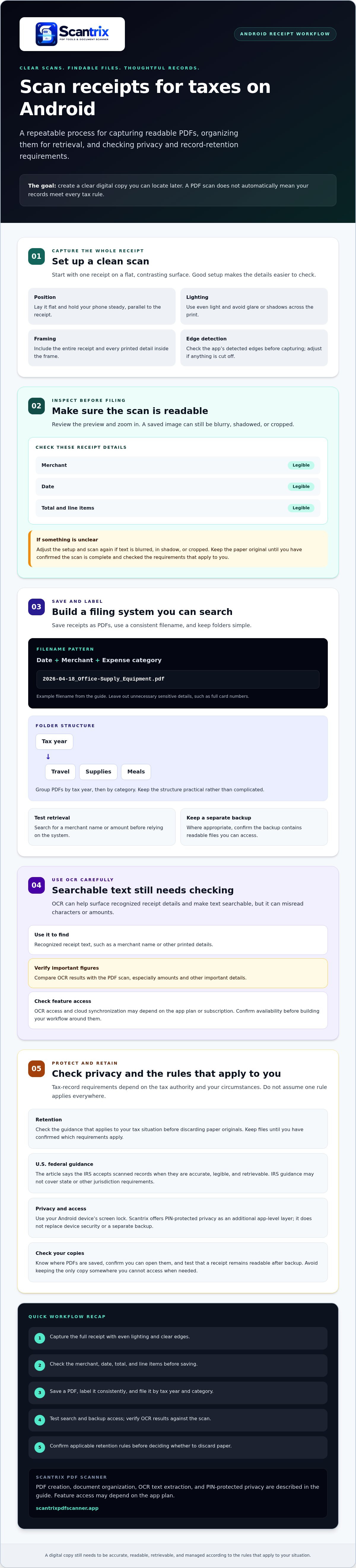
To learn how to scan receipts for taxes android, start with a clear capture and verify the file before moving on. Open an Android scanning app and place one receipt on a flat, contrasting surface. Use even lighting, avoid glare, and hold your phone steady and parallel to the receipt.
Frame the full receipt, including its edges. Check the app’s automatic edge detection before capturing. If the preview cuts off a detail, looks blurry, or has shadows across the print, adjust the setup and scan again. Don’t assume a saved image is readable just because it looks clear at a glance.
- Lay the receipt flat and hold the camera parallel to it.
- Keep every printed detail inside the frame.
- Review the preview before saving. Retake the scan if text is blurred, shadowed, or cropped.
What makes an Android receipt scan readable?
Before filing, zoom in and check that the merchant, date, total, and line items are legible. A readable scan helps you review the expense, confirm what was purchased, and share a clear copy if requested.
Save each receipt as a PDF so it’s easy to open and file. A scanner app such as Scantrix PDF Scanner can create PDFs, and its smart edge detection can help capture the receipt’s boundaries. OCR may make printed details easier to search, but compare the results with the original because text recognition can make mistakes.
A PDF is a digital copy, not automatic tax compliance. Good records management principles include capturing records clearly and managing them through their lifecycle. Keep the original until you’ve confirmed the scan is complete and checked the requirements that apply to your tax situation.
How to organize scanned tax receipts for fast retrieval
A clear scan is only useful if you can find it later. Make filing part of your how to scan receipts for taxes android routine: name each PDF consistently, save it in the right folder, and test that you can retrieve it.
A simple receipt-filing system for Android
Use a filename that includes the date, merchant, and expense category. For example: 2026-04-18_Office-Supply_Equipment.pdf. Keep names descriptive, but leave out unnecessary sensitive details such as full card numbers. Group PDFs into folders by tax year, then by category, such as travel, supplies, or meals. This creates a practical filing system without making the folder structure complicated.
Test retrieval by searching for a merchant name or amount before you rely on the system. OCR can make recognized receipt text searchable, but it may misread characters or amounts. Check important figures against the scan. OCR access may depend on the app plan, so confirm feature availability before building your workflow around it.
Keep a separate backup where appropriate, and confirm that it contains readable files. Cloud synchronization may depend on your subscription, so check the terms of your chosen storage option. For guidance on keeping business records, review the IRS record-keeping requirements and follow the rules that apply to your situation.
For an Android workflow that combines PDF creation and document organization, explore the Scantrix PDF Scanner app.
How to protect receipt scans and check tax-record requirements
Keep receipt PDFs private, backed up, and available for the period your tax situation requires. Retention rules and acceptance of digital records differ by tax authority and may depend on your circumstances. In the United States, the IRS accepts scanned records when they’re accurate, legible, and retrievable, but that doesn’t mean the same rules apply everywhere.
Before discarding paper originals, check guidance from your applicable tax authority or ask a qualified tax adviser. The IRS publication on recordkeeping explains U.S. federal guidance, but it may not cover state or other jurisdiction requirements. Keep files until you’ve confirmed which rules apply to you.
How can you keep receipt PDFs private and accessible?
Start with your Android device’s screen lock. Scantrix also offers PIN-protected privacy, adding an app-level layer, but it doesn’t replace device security or a separate backup. Check where your PDFs are saved and confirm that you can open them from that location.
Before relying on cloud synchronization, review the app’s current plan access and backup settings. Advanced features, including cloud synchronization, may depend on subscription access. Test that a saved receipt remains readable after backup, and avoid keeping the only copy somewhere you can’t access when needed.
If you’re comparing how to scan receipts for taxes android workflows, Scantrix offers PDF creation, document organization, and OCR text extraction. OCR can help surface recognized receipt text, but verify important details in the PDF. For questions about using the app for receipt scans, ask about scanning receipts with Scantrix.
Make receipt records easier to manage
Learning how to scan receipts for taxes android involves more than capturing a page. Clear PDFs, consistent labels, and a quick retrieval check help turn scans into useful records. Use OCR as a search aid, then verify important details against the receipt image.
Protect access with your device screen lock and available app privacy controls. Before discarding paper originals, check the retention and digital-record rules that apply to your jurisdiction and tax situation. Ask the relevant tax authority or a qualified adviser if you’re unsure.
Scantrix offers Android PDF scanning with automatic edge detection, OCR text extraction, and PIN-protected privacy. Access to some features may depend on your plan. Ask Scantrix about scanning and organizing receipts to learn how these tools may fit your workflow. Set up a simple routine so your records are easier to find when you need them.
Frequently Asked Questions
Can I use a scanned receipt for taxes?
A scanned receipt may be useful as a tax record, but whether it’s accepted and how long you must keep it depends on your jurisdiction and circumstances. Don’t assume a phone scan replaces the original in every case. Check your tax authority’s current guidance, including rules for digital records, or ask a qualified tax adviser before discarding paper receipts.
How do I scan a receipt on Android so the text is readable?
For how to scan receipts for taxes android, place the receipt flat under even lighting and hold your phone parallel to it. Capture the full page, then inspect the saved scan for blur, glare, shadows, or cropped details. Retake a poor image. Before filing, zoom in and verify key information, especially the merchant, transaction date, and total.
Can OCR read the information on a receipt?
OCR, or optical character recognition, identifies printed text in a scan and can make recognized words searchable. Results can vary: small print, faded ink, unusual layouts, and poor image quality may cause errors. Review extracted merchant names, dates, and amounts against the receipt image. If you use Scantrix, check which plan includes the OCR access you need.
How long should I keep scanned receipts for taxes?
There’s no single retention period that applies to everyone. The required time can vary by jurisdiction, record type, and individual circumstances. Check current guidance from the relevant tax authority or consult a qualified tax adviser before deleting files or discarding originals. Once you know the applicable period, keep receipt scans organized and backed up so they remain accessible.


