
After a property visit, the paperwork still needs to be clear and easy to file. A mobile scanner for real estate agents can turn contracts, disclosures, receipts, and other pages into usable PDFs, but the right setup depends on how you capture, organize, and review documents.
Paperwork can pile up between showings and client meetings. Phone photos may be tilted, difficult to read, or hard to retrieve later. This guide explains what to look for in a mobile scanning workflow, including page detection, searchable text, PDF organization, and privacy controls. It also compares phone-based scanning with portable hardware so you can choose a setup that suits your workday. Scantrix PDF Scanner brings edge detection, OCR, electronic signatures, and PIN-protected privacy to an Android workflow.
Key Takeaways
- A mobile scanner for real estate agents should turn property forms, notes, receipts, and client paperwork into clear digital documents.
- Compare scanning options by capture quality, PDF handling, text retrieval, signing tools, and privacy controls.
- Check each finished scan for legibility before filing or sharing it with a client.
- Scantrix combines edge detection, PDF creation, OCR, electronic signatures, and PIN-protected privacy in a phone-based workflow.
What should a mobile scanner for real estate agents handle?
Property information sheets, viewing notes, receipts, and client paperwork can arrive throughout an agent’s day. A mobile scanner for real estate agents uses a phone to capture paper pages and convert them into digital documents, such as PDFs, ready to review and organize.
A useful scan needs clean framing, readable details, and an output you can file. A standard phone photo may include a tilted page, background clutter, or uneven lighting. A scanning workflow can identify page edges and create a document-focused image. These capture and filing steps are part of a broader Document Management System, where records are organized for later retrieval.
Which documents benefit most from a phone-based scanning workflow?
Property information sheets and receipts are useful to digitize when you need a clear record without carrying loose pages back to the office. Capture viewing notes for reference, and group client paperwork with the relevant property or transaction records. Use a consistent naming pattern, such as a property identifier followed by the document type and date, so you can find files later.
Signed forms can also be scanned to keep a digital copy of the completed page. If you need to add a signature on your phone, see this guide to signing PDF documents on a phone.
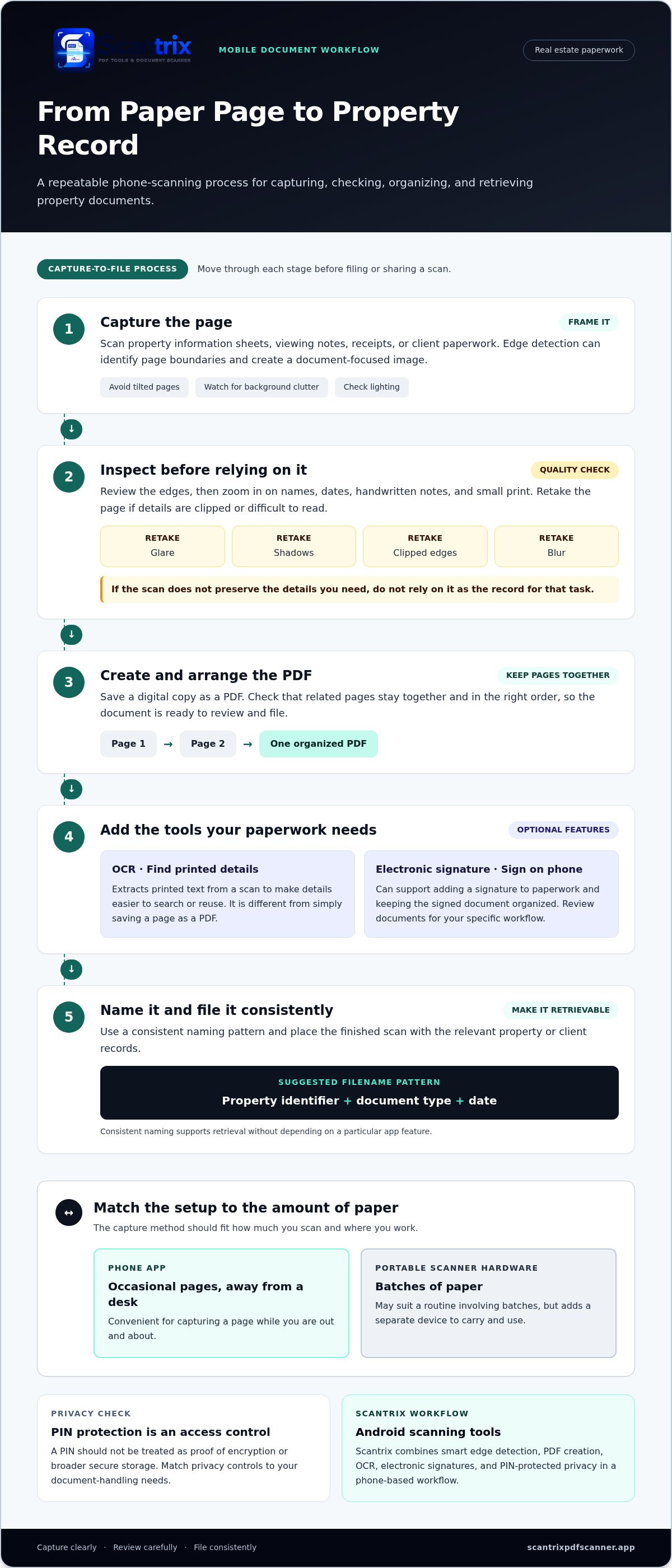
Check each scan before filing or sharing it. Confirm that names, dates, handwritten notes, and small print are readable. Retake pages with glare, shadows, clipped edges, or blur. If a scan does not preserve the details you need, do not rely on it as the record for that task.
How to compare a mobile scanner for real estate work
Compare the full document workflow, not just how quickly a page is captured. The right scanner is the one whose functions match the paperwork you handle regularly. Use these five checks:
- Capture quality: Look for automatic edge detection that identifies page boundaries. Review scans for clipped text, blur, shadows, and legible fine print.
- PDF workflow: Check whether the app creates PDFs and lets you keep related pages together in the right order.
- Retrieval needs: If you need to find printed details later, consider OCR. It can extract text from a scan for easier searching or reuse.
- Signing: If you add signatures on your phone, consider whether the workflow supports electronic signatures and lets you keep the signed document organized.
- Privacy controls: Look for controls such as PIN protection, and understand what they do. A PIN is an access control, not proof of encryption.
Also consider how much paper you scan at once. A phone app is convenient for capturing an occasional page while away from a desk. Portable scanner hardware may suit a routine that involves scanning batches of paper, but it adds a separate device to carry and use. The National Association of REALTORS® on Real Estate Technology provides broader context on technology in real estate, including the role of digital tools in professional workflows.
How do OCR, PDF organization, and privacy affect the choice?
OCR extracts text from printed content in a scan, which can make details easier to find or reuse. It is different from simply saving a page as a PDF. For a closer look at the process, see the guide to copying text from a scanned document.
Organize PDFs so property and client records are easy to distinguish. A PIN adds an access control, but it should not be treated as proof of encryption or broader secure storage. Match the tool’s privacy controls to your document-handling needs. If a phone-based PDF workflow suits your routine, explore the Scantrix PDF Scanner app.
How Scantrix fits a real estate agent's mobile scanning workflow
Scantrix PDF Scanner turns an Android phone into a document-scanning workflow for property and client paperwork. Smart edge detection identifies page boundaries during capture, and PDF creation gives you a digital copy to review and file. OCR extracts printed text, which can help you retrieve details without retyping them.
For signed paperwork, the app includes an electronic signature tool. PIN-protected privacy adds an access control, but it should not be treated as a claim of encryption or a guarantee that a signature will be accepted for a particular transaction. Match each feature to the task and review documents before using them in your workflow.
A simple capture-to-file routine between appointments
Capture the page, then inspect its edges and zoom in on names, dates, and small print. Retake it if content is clipped or hard to read. Save the finished scan as a PDF and use a consistent filename, such as a property identifier followed by the document type and date. Place it with the records for that property or client. Consistent naming supports retrieval without depending on a particular app feature.
Scantrix also supports an edit-to-scan workflow, so you can refine a scan while preparing the document. Its mobile scanning features are for Android. Explore the PDF scanner app overview to see how its capture and document tools fit your routine.
When comparing a mobile scanner for real estate agents, consider whether capture, text extraction, signatures, and privacy controls match the paperwork you handle regularly. Scantrix brings these tools together in an Android scanning workflow.
Make your next document workflow easier to repeat
A mobile scanner for real estate agents is most useful when it fits naturally into an existing routine. Decide how you will name files, where you will keep property records, and when you will check a scan before sharing it. A repeatable process makes each new document easier to handle, even on a busy day.
Start with the paperwork you capture most often. Try the workflow on a routine page, then adjust your steps to suit your records and client needs. Consider access controls when deciding how to handle sensitive documents.
Ready to put a phone-based scanning routine into practice? Contact Scantrix about your mobile scanning workflow.
Frequently Asked Questions
Can a mobile scanner create PDFs for real estate paperwork?
Yes. A mobile scanner for real estate agents can convert captured paperwork into PDF files, and Scantrix PDF Scanner creates PDFs on Android. For a multi-page packet, keep the pages in sequence and review the file before filing. A PDF can provide a handy digital reference, but follow the document-handling process required for the transaction.
Can OCR read text from real estate forms scanned with a phone?
Yes. OCR can extract printed text from a phone scan, making details easier to search or reuse. Results depend on the source image. Faint print, skewed pages, handwriting, and dense tables may affect recognition. Compare extracted names, dates, and property identifiers with the original scan before copying them into a client record or another document.
Is a phone scan suitable for property floor plans?
It can work for a quick visual reference if the entire printed plan is captured clearly. Keep the page flat and include labels, symbols, and notes in the frame. A phone scan should not replace the original plan when exact scale or measurements matter. Use the source plan for dimensions, and verify details before relying on them in client materials.
Can an electronic signature in a scanning app replace every real estate signing process?
No. An app’s signature tool can add an electronic signature to a document, but it does not automatically replace every signing workflow. Requirements can depend on the document and transaction process. Before using an app signature for a specific form, follow the instructions provided for that transaction and keep the completed document with its related records.


