
Your smartphone gallery is a security liability. It's the first place unauthorized users look and the last place you want sensitive business data exposed. You understand that digital privacy is non-negotiable in a high-stakes environment. However, many users find that complex encryption software creates a bottleneck, turning a simple task into a slow, frustrating workflow. You need a solution that prioritizes both speed and safety.
This 2026 mobile security checklist ensures you can encrypt documents on smartphone devices with total confidence. We'll show you how to secure your sensitive files using professional-grade standards and PIN-protected access. You'll learn to eliminate vulnerabilities, streamline your scanning process, and maintain an airtight digital vault. We'll cover everything from smart edge detection to local processing, giving you the tools to protect your documents in seconds.
Key Takeaways
- Verify professional AES-256 standards. Prioritize local-only processing to eliminate cloud-based vulnerabilities.
- Master the essential steps to encrypt documents on smartphone devices. Secure sensitive files during the scanning phase.
- Enable PIN-protected privacy settings. Prevent unauthorized access to your mobile gallery and sensitive legal documents.
- Utilize smart edge detection and automatic organization. Create high-resolution, secure PDFs with a streamlined workflow.
Selection Checklist: How to Encrypt Documents on Smartphone Safely
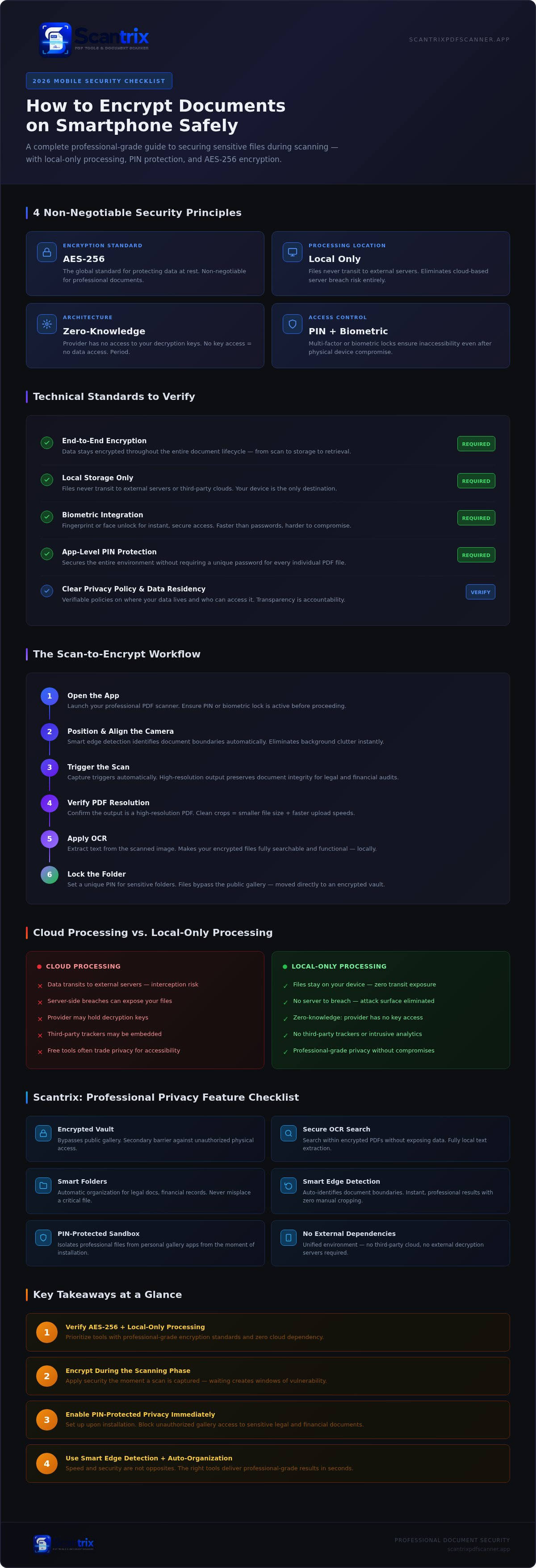
Security starts with the right architecture. You can't safely encrypt documents on smartphone platforms without verifying the underlying technology. Prioritize AES-256 encryption. It's the global standard for protecting data at rest. Avoid tools that rely on cloud-based decryption. Choose local-only processing. This keeps your sensitive files on the Android device; it eliminates the risk of server-side data breaches.
Demand zero-knowledge architecture. This means the software provider has no access to your decryption keys. If they don't have the key, they can't see your data. It's that simple. Pair this with multi-factor authentication or biometric locks to encrypt documents on smartphone hardware effectively. These layers ensure that even if a device is physically compromised, your documents remain inaccessible. Look for tools that offer clear, verifiable privacy policies regarding data residency.
Technical Standards to Verify
Evaluate how the software handles access. App-level PIN protection is often superior for rapid workflows. It secures the entire environment without requiring a unique password for every individual PDF. This prevents slow workflows while maintaining high security. Confirm that your choice integrates with a confidential document scanner app workflow to maintain security from the moment of capture. Verify these specific protocols:
- End-to-end encryption: Data stays encrypted throughout the entire lifecycle.
- Local storage: Files never transit to external servers or third-party clouds.
- Biometric integration: Use fingerprint or face unlock for instant, secure access.
Consistency is key. A fragmented security approach creates gaps. By centralizing your encryption within a single, local environment, you reduce the attack surface. You also speed up your daily operations. Professional tools should bridge the gap between scanning and security seamlessly.
Execution Checklist: Encrypt Documents on Smartphone While Scanning
Capture the file. Smart edge detection identifies boundaries instantly. It eliminates background clutter. Professional results require precision. Convert the raw image into a high-resolution PDF. This format preserves document integrity. High-resolution files ensure legibility for legal or financial audits. Clean crops result in smaller file sizes. This improves upload speeds and storage efficiency. Speed meets quality.
Security must be immediate. Apply PIN-protected privacy layers the moment the scan finishes. Waiting is a risk. Move files directly to a secure, encrypted vault. This bypasses the public gallery entirely. You encrypt documents on smartphone hardware by isolating them from general storage. It's a proactive defense. Isolation prevents third-party apps from scraping your data. Encrypted vaults provide a secondary barrier against unauthorized physical access. Your gallery stays clean.
The Scan-to-Encrypt Workflow
Launch your professional PDF scanner. Align the camera. Let the smart edge detection trigger automatically. This is the fastest way to encrypt documents on smartphone storage without sacrificing quality. Once captured, use OCR to extract text. This makes your encrypted files searchable and functional. Before saving, set a unique PIN for sensitive folders. This creates a dedicated security perimeter within your device.
- Open the app.
- Position the lens.
- Trigger the scan.
- Verify PDF resolution.
- Apply OCR.
- Lock the folder.
Security is a habit. It requires the right tools. Effective document management demands both protection and accessibility. If you need assistance configuring your vault or optimizing OCR results, contact our support team for expert guidance. We prioritize your privacy.
Scantrix Checklist: Professional Privacy for Scanned Files
Professional document management requires more than a simple file lock. Integrate security into every stage of the lifecycle. Scantrix PDF Scanner provides a unified environment to encrypt documents on smartphone devices without external dependencies. Enable PIN-protected privacy settings immediately upon installation. This creates a secure sandbox for all scanned data. It isolates your professional files from personal gallery apps.
Leverage automatic organization tools to maintain a clean workspace. Use smart folders to categorize sensitive legal documents or financial records. This systematic approach ensures you never misplace a critical file. Secure OCR text extraction allows you to search within these encrypted PDFs. It converts images into functional data while maintaining local-only processing standards. Data stays on your device. Privacy remains intact.
Premium Privacy Features
Free tools often trade privacy for accessibility. They frequently include third-party trackers or intrusive advertisements. An ad-free environment is essential for professional data security. It eliminates potential entry points for malware or data harvesting. Compare these premium layers with standard app to lock pdf files on android strategies. Scantrix PDF Scanner combines scanning, OCR, and e-signatures into one protected vault.
- Secure E-Signatures: Apply signatures directly to encrypted contracts without leaving the secure environment.
- Zero-Ad Interface: Prevent data leaks caused by third-party advertising networks.
- OCR Searchability: Index your encrypted library for instant retrieval.
Total control is the goal. Use Scantrix PDF Scanner to encrypt documents on smartphone storage while keeping your workflow rapid and professional. By consolidating your tools into a single, PIN-protected app, you reduce the risk of unauthorized access. This is the ultimate proactive defense for 2026. Efficiency meets absolute security.
Secure Your Digital Future Now
Mobile security is a proactive choice. You've learned to prioritize local processing and professional AES-256 standards. You now understand the scan-to-encrypt workflow. This systematic approach ensures your data remains isolated and protected. It's time to encrypt documents on smartphone devices with precision and speed. Use professional edge detection to capture clean files. Apply PIN-protected security immediately. Leverage professional OCR extraction to keep your encrypted library functional and searchable.
Don't leave sensitive data exposed in a vulnerable public gallery. Take control of your professional privacy today. You have the checklist; now execute the plan. Secure your documents with Scantrix today for an airtight mobile vault. Your professional integrity depends on reliable encryption. Start protecting your files now. You are ready for a more secure workflow.
Frequently Asked Questions
How do I encrypt a PDF on my Android phone?
To encrypt a PDF on your Android phone, use a scanner app with integrated privacy layers. Scan the physical page. Apply a PIN-protected lock immediately. This process secures the file within a dedicated vault. It prevents the document from appearing in your public gallery. This method provides instant protection for sensitive business data without requiring complex desktop software or external tools.
Is it safe to store sensitive documents on a smartphone?
Storage is safe if you prioritize local processing over cloud synchronization. Smartphones are vulnerable when data transits to external servers. Use professional-grade encryption to secure files on the device hardware. This approach creates a proactive defense. It ensures that your sensitive legal or financial documents remain inaccessible to unauthorized apps or third-party data harvesters on the Android platform.
What is the difference between a password and encryption?
A password acts as a digital gatekeeper; encryption transforms the data into unreadable code. You need both for total security. A password stops unauthorized entry into the app. Encryption ensures the underlying file is scrambled. Even if an intruder bypasses the lock, they can't read the content. This dual-layer strategy is the most effective way to encrypt documents on smartphone devices.
Can I encrypt a document without using cloud storage?
Yes. Local encryption allows you to secure files without ever uploading them to the internet. Choose applications that offer local Android processing. This keeps your data residency on the physical device. It eliminates the risk of cloud-based data breaches. You maintain total ownership of your files. Local processing also ensures faster workflows because you don't rely on a stable internet connection.


